Showing posts with label Google. Show all posts

Saturday, October 3, 2026

Google Tips for You!

This will be a short one ... but one that I hope has a lot of impact. One of the pieces to my job is to provide support to the staff in my district. This year, my counterpart & I have planned to do monthly sessions in each of our buildings and I suggested we start off with a slew of Google tips - Google is always a highly requested learning session that often gets pushed off because of curricular program learning. So we brainstormed a list of tips, tricks, and shortcuts to go through with the staff.

Since I prefer to walk away with something in my hands, I created this PDF for the staff and it can now be yours, too! I hope you find some things that help you work a bit more efficiently. The items with a yellow asterisk at the end are hyperlinks to a support link with more detail. 

Enjoy! Click on the image to open as a PDF.


*** Every Monday, I share a newsletter with a collection of Tech You Can Do resources. It is delivered right to your inbox. Interested?
Sign up here!  ***

Sunday, July 28, 2024

Professional Learning I've been doing ... and You Can Do, too!

I'm returning to the same role as last year as a middle school technology teacher and I am feeling good about it. My first year in a new district and school was all about figuring things out and taking it all in. Being back in the classroom after 8 years in a TOSA (teacher on special assignment) role showed me I needed to recalibrate a bit. It also reaffirmed my belief in "less is more" for both myself and my students. 

I have been checking off some professional learning this summer that is related to my role and I'm excited to share them with you. I'll also share the links and reasoning for my "why" for each.

First up - I renewed my Google Educator Level 1 certification. (You can find the learning modules on the Google for Education Teacher Center website.) I completed my first Google Educator Level 1 back in the summer of 2015 and it was literally the beginning of the new direction of my teaching career. It's good for 3 years and this is the 3rd time for me. I strongly recommend any teacher who uses Google in their classroom take this professional learning and test for certification. The test costs $10 and is well worth it.

Next, I will be renewing my Google Educator Level 2 certification this week. (You can find it at the Google for Education Teacher Center website.) I completed this one right after I did Level 1 in 2015 and have zero regrets. I was hungry for more and I was excited to continue my Google learning. Completing Level 2 really confirmed I knew what I was doing. The learning modules are 100% free and worth the time investment. The cost for the Level 2 test is $25 and again, I'm happy to pay it for the 3rd time to renew.

A big goal for me this summer has been to put time in learning about AI. I have been taking a pretty slow approach to AI. But I do believe AI is here to stay and I have a responsibility in understanding it and helping to form how it's being used with students. I also want to be sure I understand what everyone is super excited about ... it's not going anywhere. Other than reading a LOT of articles from other educators, I've completed two courses and if you are wanting to learn more, both are great starter places. 

The Generative AI for Educators course is found on the Grow with Google website. It had a nice balance of theory and learning about AI paired with scenarios to practice using AI. It's important to note that while it recommends Google's AI tool, Gemini, you are welcome to use your AI tool of choice. What I really appreciated in this course was all of the resource materials provided. I know I will keep coming back to them over the coming school year. There is no cost to the modules or the final assessment.

The second AI course I completed was Code.org's AI 101 Self-paced Professional Learning for Educators. You can find it Code.org's Professional Learning landing page. This course also provided quite a bit of theory and thinking around AI, which helped me get a better understanding and increased my comfort with AI. I have used Code.org for years with my students and I've recently found their professional learning to be quite helpful, too. There is no cost to this professional learning.

This upcoming year, I will be co-teaching a brand new class with the art teacher in my school. We are hoping to use Adobe with our students, so I decided to do some professional learning. You can find the learning on the Adobe Education Exchange page. I have not used Adobe much and this course was my way of "dipping my toes" in. I will be following this up with my Level 2. I've completed the learning for it and I'm working on finishing up the portfolio before I submit. There is a LOT packed into Adobe! There is no cost to either level of Adobe learning.

Do you love Canva? I do and I was shocked to see they had a teacher certification course this summer. It wasn't on my radar ... and I'm pretty sure the day after I noticed it, I jumped on it. The Canva Teacher Essentials course is found on their Design School page. It is video based, which I love and it just makes me love Canva even more! I also went on to complete the Graphic design essentials course, too! All Canva learning is 100% free.

My final professional learning goal this summer is the Modern Classroom Project. Coming back to the classroom after being out for 8 years was hard. I know I need to put time and energy into this area. Teaching isn't an easy profession, but I've always said the I don't back down from a challenge. I believe school is a place for ALL and I want to be sure I'm doing what I can to ensure the students that walk into my class learn in a way that works for them. You can find the FREE course I will taking on Modern Classroom's website.

I hope I've shared some professional learning that you might be interested in or that might support you in your role. Please reach out if you have any questions or would like more information about any of these learnings.


*** Every Monday, I share a newsletter with a collection of Tech You Can Do resources. It is delivered right to your inbox. Interested? Sign up here!  ***

Sunday, January 15, 2023

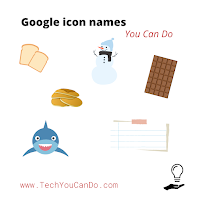
Google icon names You Can Do

How many times have you heard someone stress the importance of your words? I think about this often whether I am working with a group of students, teachers, or with individuals. 

I think about this when I refer to tools or files or actions and most definitely icons. Working with our youngest learners often forces me to describe icons or logos or "things" in order to get students to the correct spot. (And teachers find such humor in the names!) If you spend any time in a classroom - of any age - you quickly find you simply HAVE to be able to direct students to where you want them with your words.

After one of my recent classroom visits, I really thought about how I use words to describe. Probably the best way I can share this is with a video. I use these references with adults and kindergarteners ... and I honestly couldn't tell you who I get more giggles from, the adults or the students!

Additionally, I do my best to NOT be the "driver" in the lesson. For example, if a teacher asks for help cleaning up their drive, or how to clear their cache & cookies, I will walk them through it - but I do NOT touch their device. When I'm in classrooms working with students, I do my absolute BEST to NOT touch any of their devices ... I want THEM to do the clicking and moving. I often catch students (& teachers!) "helping" others by doing it FOR them. When that happens, I remind them to "Cheer them on! Point to the screen ... use your words."


After all, the person/people doing the "driving" is the person doing the learning. 

Now, go find those shark tooth's and pancakes and snowmen ... and listen for the giggles!


*** Every Monday, I share a newsletter with a collection of Tech You Can Do resources. It is delivered right to your inbox. Interested? 
Sign up here!  ***


Sunday, December 27, 2020

2020: We Did It!

2020 has been quite the year! Ups and downs, ins and outs, twists and turns. It's a relief to be able to say "I've done it! I've made it!" ... and I'll bet you feel the same. 😀I truly hope we do not experience another year like this anytime soon.

When I look back at who I was and where I was one year ago, and I think about how I was looking forward to the challenges 2020 was going to bring, I could not have ever predicted what we have all gone through. I had plans for 2020 - and then they went sideways.

I'm not going to spend today mourning what could have been. Instead, I'm going to celebrate my 10 most read blogs from the year as a recap. The pandemic played a major role in what I wrote for the majority of the year - and that's what I want to celebrate. We might all be in different spots, but there are so many similarities that bring us together.

Not surprising, many of the top read are about Google Classroom. It has become a passion of mine to share tips and resources about Classroom. And during the spring closure, I had quite the revelation: we teachers need to stop looking at Classroom (or whatever you LMS is) as teachers. We must look at it as a student and then design our Classrooms with THEM as our driving principle. That shines as a guiding principle for many of my blogs this year.

Here are the "10 Most Read Blogs of 2020" ⤸ 


#10: Google Photos e-portfolio You Can Do - Are you looking for an easy way for students to share their paper work? How about using Google Photos? This is perfect for students of ALL ages! As the teacher, create the album for each student & share it to their account. Using the comment feature, you can also provide feedback on work they upload. Best part ... it all stays connected to the students' Google accounts!

#9: Grading Forms in Classroom You Can Do - I worked closely with a 4th grade teacher to create this workflow. Grading and returning a Google Form in Classroom so students can see both their grade and any feedback you provide is not the easiest ... but it IS possible! The key is in the settings you do - and don't worry, if you don't get it right before having students complete it, you can always come back and fix it!


#8: Google Classroom Item Types You Can Do - One of the easiest things a teacher can do to better organize and use Google Classroom is to strictly stick to using the best item type for the material being posted. During the spring closure, I found a lack of understanding of what the items types are "best" for. I share an entire presentation with specifics for each item type. (Be sure to check out the final 2 slides - they are handy, ready-to-print reference sheets!) And when you post your material strategically using the best item type, your students (& their parents!) will have less confusion as to what must be done.


#7: Insert Audio (... for kids!) You Can Do - And amazing update to Google Slides is the ability to add audio! Not only can you add audio, so can your students! When I shared this out in early 2020, my focus was not just on the teacher adding audio, but I shared this geared towards showing your students how to add audio. Step-by-step directions AND a quick-print PDF makes it even easier for you to add audio. Game changer for sure! 


#6: Research Template You Can Do - Many of my blogs are inspired by my day job, but quite a few are inspired because I am also a mom. I teach in a different district than where my girls go school, so I get to see how even more teachers teach. This one was inspired by how my middle daughter was doing research for a report. In all honesty, she wasn't taught HOW to research. I realized that for the most part, we AREN'T teaching our students HOW, so I created this template that ANY teacher can take, insert their specifics, and share it to students to provide a structured approach to teaching students how to research.  


#5:
 New Quarter = New Classroom You Can Do - With our "new normal", our need to keep our digital classrooms organized is even more important. Many teachers aren't teaching students in face-to-face situations, some are in hybrid situations, and some, even though they are face-to-face, rely heavily on digital classrooms to lessen the use of paper. I STRONGLY recommend starting with a NEW classroom at the quarter/grading breaks. Use these 7 steps to help you, your students, and their parents focus on the now.


#4: A Deeper Dive into Google Classroom Posting Options You Can Do - Did you know there are many posting options in Google Classroom? And just like item types, use them strategically to "better" organize your materials and you'll reap the benefits. Topics, scheduling, and draft mode will allow you to plan ahead, organize, and have material "magically" show up just when you want or need it to. Design your Classroom through lens of your students. It will pay off. I promise.


#3: Classroom Header Template You Can Do - This is purely for fun! Google Classroom provides a somewhat random image for your header. Based on the name you give your Classroom, you might get lucky that it matches the content. However, you CAN choose your own header, or even better, create your own and then upload it for a custom look. But, this allows you to go one step further ... include your students on the design of your Classroom and give them some ownership and pride in the look of the Classroom they use just as much as you. This can be a class project!


#2: Starting Google Classroom You Can Do - How much thought have you put into setting up your Google Classroom - or other digital classroom? My second most read blog in 2020 is one where I share an 8 ideas to really put some thought into as you set up your new Classrooms. If you are an administrator, I also recommend you go through this process as it will give you insight as to your recommendations for the teachers you serve and support. Doing this process as a teaching team, or even whole building, and ultimately aligning the general structure of ALL digital Classrooms will benefit your teachers, your students, and your parents. Not having to "learn" a new structure for each teacher will lessen the frustration at home, and right now, that is super important. 

P.S. this process can work for ANY digital classroom, not just Google Classrooms.


#1: Google Classroom "To Do/To Review" You Can Do - Late summer always brings updates to Classroom and this year is no exception. This year's BIG update was a "To Do" (for students) and a "To Review" (for students). THIS. WAS. MAJOR. With a click on the "To Do", students can now see all of their assigned work for all classes, or just one class. This simple look is game changer! I also tucked in a view of the teacher's "To Review" where you will see ALL assignments, or assignments for a specific class. This blog also shares some overall guidance for Google Classrooms.


I hope you enjoy this final week of 2020 and that you are able to rest, relax, and enjoy. Thank you for reading and sharing my blog out. I absolutely love creating, designing, and sharing out what I do. I truly hope that it is helpful. I will continue to share in 2021. And thanks to a conversation with a colleague and friend, I have a pretty awesome one to start the year off with! As a district we will start the new year off remotely and she was struggling with setting boundaries with students in this digital world.

Please feel free to comment below ⤵ - Tweet at me @kiefersj - on Facebook Sarah Kiefer - or even email me sarah@techyoucando.com. I'd love to hear from you!


Sunday, August 2, 2020

Making the Most of August You Can Do

August always brings mixed emotions for me. August signals the beginning of the end of summer ... school supply shopping ... heavy prep work for the coming school year ... rush to finish projects around the house ... squeeze in family time ... ramping up of fall sports ... soaking up every bit of sunshine possible ... all good, yet a little sad - I love summer!

August 2020 is in many ways the same, yet COMPLETELY different! If I'm being honest, the past 4 1/2 months have been both wonderful (extra family time, enforced slow down of running around, extra learning time) and stressful (the unknowns, the fears, the crazy, the emotional roller coaster). It's also been physically taxing on me (I fell on a run & required shoulder surgery - I'm 6.5 weeks post-surgery, healing nicely, but this is going to take time). But I'm not here to complain!

Thanks to the wonderful people around me, I've been able to accomplish a great many things this summer and I still have some items to check off my "to do" list. I'm excited!

Back in April, I kicked it off with presenting at the April meeting for GEG Ohio. I shared how you can create an "app" using Google Slides. There is a lot of goodness in this meeting - I appear around the 1 hour mark.

From there, a huge thanks goes out to Dr. Desiree Alexander, my #NYC19 Innovator Coach. She allowed me to share 11 - yes ELEVEN - webinars with a great many educators. And ... we have a few more planned! Yay! Not only does she do these live, but she records them and shares them out on her YouTube channel (Educator Alexander) so you can watch them afterwards. All the resources are tucked in the show notes, so be sure to click the "show more" so you can learn right along with the recording.

Pre-injury, I installed new floors throughout our 1st and 2nd floors. We also did a fair amount of painting. Unfortunately, our new stair treads were backordered and didn't come in until after my surgery. My dad is super handy and came over a couple of times and helped complete most of the projects! My mom got to enjoy some fun with my girls, too.

I also was able to participate in a handful of conferences that moved their entire conference online and offered it freely to everyone! There was EdChange Global, WeVideo Creator Community, and Beyond the Bootcamp with Jeff Bradbury. You can find them all on my YouTube Channel on the "My Presentations" playlist.

And I have a few more things still coming up! This week will kick off Monday with the G-Tech Summit hosted by the Genoa Area Local Schools in Ohio. I'll be presenting on both Monday & Tuesday. I encourage you to join in the learning fun - there will be tons!

I'm also excited to keep learning about Data Studio, Blended Learning, Google's new Certified Coach curriculum, and I've always got a stack of books to read. 

Guess I better get moving and tackle some of the items on my "Today's To Do" list. How about you? What's on your list?

Have a question or comment? Please leave it below. Or Tweet at me - @kiefersj - I'd love to connect. Would you like some help with something - feel free to email me sarah@techyoucando.com .


Sunday, July 5, 2020

Google Slides & Forms You Can Do

My journey continues this week with Google Slides & Google Forms.

Google Slides is a presentation tool & Google Forms is a survey tool. But as with Sheets & Docs, don't limit them to their "face value" ... if you do, you will miss out on SOOOO much! 

Slides is probably my "go to" Google app for, well, pretty much ANYthing & EVERYthing I do. Slides allows for SUCH a wide variety of uses - presentations, for sure; but also, interactive activities, eBooks, photo albums, entire lesson plans, writing activities, research, and so much more! Be sure to check out the resources I share. If you are a teacher, you really need to check out and use Slides ... it won't disappoint!

Forms was honestly where I really fell in love with Google. It didn't look like much, but I never looked back once I created my 1st Form - and all I did was use it as a glorified scantron! Forms may not look like much but IT. IS. POWERFUL! Surveys, assessments, interactive activities, choose your own adventures, data collection, curation tool, and so much more! I literally had to walk away from my computer & give myself a pep talk, "You 'could' continue giving examples of ways to use Forms, but you have 10 already!"

And the best part ........... we aren't done. That's right! We are only half-way through this summer webinar series & you can still join in! 

I've got several things coming up this week:
  • Monday, July 6 (1-3 pm EST): Google Drive You Can Do
  • Tuesday, July 7 (9 pm): I will be participating in a Twitter chat about the book "Innovate Inside the Box" by George Couros & Katie Novak.
  • Thursday, July 9 (1 pm EST): I will also be presenting for GEG Louisiana, "Working Together to Support Our Students"
  • Friday, July 10 (6 pm): EdChange Global Conference: I'll present "Build an App for Your Classroom"
  • Saturday, July 11 (8 am): EdChange Global Conference: I'll present "Start Google Classroom on the Right Foot"
And during the rest of July ... Classroom, Chrome, and as many other Google Apps as I can cram into the 2 hours! I have links to the registration for all of these on "My Presentations" calendar page linked above. Everything is FREE & I'd love to see you at any or all of them!

Now, on to my shares for this week ... below you will find the YouTube videos & the resources I use in each presentation.


Google Slides

Video →


Google Forms

Video →


I hope you enjoy these! Please reach out if you have questions or if you'd like some additional help. I've been loving connecting with some of the viewers on Twitter and through email. Together, we are better.

You can comment below ... or Tweet at me @kiefersj ... or even email me at sarah@techyoucando.com .

Also, be sure to check out Desiree's many other helpful videos & tips on he YouTube Channel → Educator Alexander. 


Sunday, June 28, 2020

Google Sheets & Docs You Can Do

I am on an epic learning adventure this summer! To make a long story short, I did a short appearance on the GEG Ohio meeting in April and now I've got quite a few virtual sessions lined up. I'm super excited! To check out what I will be presenting & the registration information, please check out the "My Presentations" page.

The first BIG learning adventure I am embarking on is what I want to share today. Together with my #NYC19 Google Innovator coach, Dr. Desiree Alexander, I will be doing an intro class for the Google Apps. Two have already happened, and if you weren't able to tune in, no worries! Desiree shares them on her YouTube Channel. I wanted to also share them here, too, along with the resources.

I do my best to make any presentation I do worthwhile, so I format it to make it a "play along". The first session was about Google Sheets and the second session was on Google Docs. Google Slides is coming up on Tuesday and Forms on Thursday. 

There's still time to join in! Check out the registration doc here, Tech You Can Do: An Intro to Google Apps. And if you can't make the day/time, I highly recommend you register anyway ... Desiree will send the recording out afterwards. 


Google Sheets You Can Do
Google Sheets can be intimidating, but they don't have to be. I even formatted my presentation IN a Google Sheet so you can see that it is far more than a spreadsheet. (It IS a pretty amazing spreadsheet, too.)

I have 2 versions of the resource:

1. This link is what it looked like prior to the recording. (If you want to "play along", make a copy of this one so you can do it authentically on your own.)

2. This link is the after version with all the changes made during the presentation. (Feel free to view/make a copy of what mine looked like afterwards.)

Here is the video:


Google Docs You Can Do
Google Docs is probably the first & easiest of the Google Apps to get going with. It is a word processor, but like ALL of the Google Apps, don't limit them to "only" being their basic format. Docs is much MORE than word processor, as we will see when we dig in.

Here is a link to Google Docs You Can Do. I shared two pretty powerful tools with Docs: one is voice typing. This is awesome for your students with specific learning needs, but ALSO for everyone - yourself included! Another powerful tools is "version history". PLEASE put this in your "teacher bag of tricks" and use it ... not just with your rascals, but also to help all when things gets deleted. It can be a huge help.

Here is the video:


I hope these two encourage you to look at Sheets & Docs in a different light. They are both incredible tools for you and your students. Do you need additional help? Do you have other questions? Feel free to reach out in the comments below ... or email me: sarah@techyoucando.com ... or reach out on Twitter - @kiefersj.

I hope to connect with you soon!

Sunday, May 31, 2020

Starting Google Classroom You Can Do

Some of us are wrapping up the 2019-2020 school year ... some are still in school. Regardless, if you use Google Classroom, you might be thinking about how to use it "better". In my district, we just finished the year, so I used this opportunity to have conversations around what we can modify or improve in our use of Google Classroom. 

I boiled it down to 8 "big ideas". While they are specific to Google Classroom, if you use another platform, you can still use these ideas and adjust the specifics to yours. I have this set up as more of a reflection activity - 8 topics, each linked to a slide with some info, and a reflection slide following. Feel free to make your own copy (use the "Template" link) or just write out your reflections on paper. This can be helpful for you to sketch out ideas or plans or thoughts rather than digitally. I challenge you to share this with your team of teachers - those you work closest with and have them do the same. The conversations that follow might help all of you form an even better plan as to how to use Classroom.

On a related note, the closure we all just experienced has reaffirmed my belief that we cannot operate as silos. It has also led me to believe we need each other more than ever. And we can't go wrong as long as we are working to improve ourselves.

The Slides below are a modified version of Slidesmania's Challenge Board (this girl is a genius!).


I'd like my own copy, please! Use this TEMPLATE link.

I'd like to just view the entire Slide deck. No problem, use this VIEW ONLY link.

I had the honor of presenting for Dr. Desiree Alexander this past Friday. I share 3 different ways to build an app for your classroom. I loved every minute! Desiree is my #NYC19 Innovator coach from Google's Certified Innovator Academy. She puts on many FREE webinars regularly. If you are interested in learning more & attending them, please go to her website: edalex.net/events .

I will be presenting on "6 Steps to Organize Google Drive" on June 2 at 1 pm EST (12 pm CST) for the GEG Louisiana. The leader is fellow #NYC19 Google Innovator, Wiley Brazier! You can sign up on the GEG Louisiana website.

I will be co-presenting on Sat, Sept 12, 2020, with Beth Kingsley all about our Templates for Teachers website. This will be hosted by Dr. Desiree Alexander and is FREE! You can register now and reminders will come to you when it gets closer.  edalex.net/events 


Please don't hesitate to reach out if you have questions, or you'd like help with this - or any of the items I share. You can comment below, reach out on Twitter (@kiefersj), or email me (Sarah@techyoucando.com).

Sunday, May 3, 2020

*UPDATED* Share Settings You Can Do

Just two weeks ago, I shared a blog all about the share settings in Google files. I laughed recently, when I heard about - and then saw - the new interface for the share settings! I have to say, change is constantly happening with Google. This change isn't a major one, but if you aren't aware you might be caught off-guard and struggle a little. Personally, I kind of like it! It is a bit more visually appealing - but you do need to adjust to the location of a few items.


To help with this, I created this "*UPDATED* Share Settings You Can Do":


As always, feel free to share this! If it works better for you to make a copy & modify it to best fit your situation, for for it!

Template preview link

File --> Make a Copy link

Do you have a question or comment? Please leave a comment below, reach out to me on Twitter (@kiefersj), or email me, sarah@techyoucando.com .

Have a great week!


Sunday, April 19, 2020

Share Settings You Can Do

A common conversation I have is about share settings. Recently, this has been a focus for many teachers, within my district and world-wide. To be fully honest - share settings still trip me up at times.


Today, I'd like to share a Google Slides I created to help explain the various share settings that are possible. This was created with the additional possibilities we have within a domain. Chances are, if you work in a school that utilizes Google, you have a "domain". This means you have additional possibilities for sharing over a personal Google account.


Please use this - and share this with others. I hope it provides a clearer understanding of the share settings. Students can benefit from this, too, but please remember I created this truly with an adult in mind. And now that I write this, it totally makes sense that I could make a version for students. If, no when I do, I'll be sure to share it. Do you have one you'd be willing to share? Please do!


Link to the "template view". Please click on the "Use Template" button in the top right corner.

Link to a "view only" copy. Please use the File --> Make a copy option to make your own copy.

As always, feel free to make your own copy! 


Do you have a question or comment? Feel free to comment below ... or reach out on Twitter (@kiefersj) ... or email me directly (sarah@techyoucando.com).


Sunday, January 26, 2020

Google Training You Can Do

I'm very excited for this upcoming week! I will be working with a small group of staff in my district to further their Google knowledge. I'm doubly excited as this was their idea and anytime someone wants to learn, I'm pumped. The fact that it's Google they want to learn more about ... YEESSSS!!!

As I was planning out this introductory session, I exchanged a few emails with the person who requested the help. It dawned on me it might be helpful to have a reference Doc for them to start with since this group will have a range of familiarity with G Suite. BUT, they will all share the same goal. ↬ increase their comfort level with Google tools.

Are a person who helps train others? Are someone who also wants to learn more about G Suite? Are someone comfortable with Google, but looking to stretch yourself a little further? Are a teacher who needs (or is looking for) some professional development? I am sharing the Doc I created with you today so that you, too, can turn around and use it for yourself, or use it to support others.

Preview of Document I will be sharing
The group I will be working with had initially asked for suggestions for classes or workshops to attend to expand their learning of Google. I suggested before going and registering for classes/workshops, to go through the FREE Google modules. I promised to also be there for them to answer questions, to provide guidance, and meet with them as it fits their learning.

I may not be able to help you in person, but I would be more than happy to support you via email, Twitter, or comments below. These modules were a turning point in my teaching career and I highly recommend them to everyone.

Are you interested? Here is a link to the Doc I created & will be sharing "Google Training You Can Do." I've also posted it on Templates for Teachers website. Feel free to use this in a way that works for you and your learners.

Finally, did you know Google has also released modules and certification for students? Yep! You can find out more at the Teacher Center, in the G Suite Certification for Students section. ***Note - this is geared toward students ages 13+.***


Have a question, comment, or idea? Share them with me on Twitter (@kiefersj), via email: sarah@techyoucando.com, or in the comments below.


Sunday, November 24, 2019

Better Google Results You Can Do

Last week I shared "Better Google Searching You Can Do". I focused on the conversation I had with a teacher about using a kid-safe browser vs teaching better search skills. I recommend we teach better search skills since I firmly believe they will serve our students long after they leave our classrooms.

This week, I'm back with a follow up. Let's say your students use the tips I shared and do a better Google Search.

Now what? 

Using better search terms will help get better initial results. Can we help our students at this point go through the results and narrow down to find the better results? 

Of course!

These tips will definitely take practice, but once you & your students get into a routine of using them, you will hopefully find they pay off in the quality of your results. Post this in your Google Classroom (or other LMS or website) so your students can refer to them anytime they do a search. I choose to focus on "tropical rainforest animals" - feel free to use this as the example and have your students do a search on their own topics. 

The link to this presentation is "Better Google Search Results". 
Feel free to use it in your class "as is" OR make your own copy of it.

And rounding this series out, the 3rd part will focus on helping students to cite their work once they've found the sources they are wanting to use.

I've also gathered several resources in my Google Chrome Wakelet collection. 

Have a question or comment? Feel free to comment below, reach out to me on Twitter @kiefersj, or email me at sarah@techyoucando.com.


Sunday, November 17, 2019

Better Google Searching You Can Do

A big part of my job is having conversations with teachers about ideas they have for their classrooms. I recently had a conversation with a teacher who wanted to know what would be a safe search engine for her students. This teacher was asking with the best of intentions - wanting to do what she can to protect her students. I completely understand her thinking, but I challenged her idea of using a "kid safe engine". Instead, I proposed this ... we spend the same time teaching her students how to perform "better" searches on the search engine we all know they will use tomorrow and for years in the future. She agreed, and I agreed to join this conversation with her students.

Research is an important skill that is taught in some way at each grade level. At younger grades, it could be using books and other print material to find information about Presidents or animals. At older grades it could involve researching hybrid cars or causes of the Civil War. I've seen my 7th/8th grade students only doing basic searches. I've seen my own daughters coming home with projects and would have very little direct instruction on how to research.

Teaching students how to do better internet searches can be a very valuable lesson ... and one well worth the time. Imagine if we can teach our students how to limit the millions of results? Imagine if we can teach them how to filter out some of the 'noise'? Imagine if we can teach them how to use the built in tools to narrow their results even further? Imagine if we teach our students how to search so that it doesn't matter if they are researching an animal or historical person or event or even a disease?

How about we take 30 minutes and give students - of all ages - some direct instruction and practice? Practicing good searching skills can pay off just like practicing math facts or collaboration or reading. And if we, the teachers, provide time to learn some solid search strategies, it tells our students we value good search skills and we want our students to find better information. 


There are 6 basic search tips, along with 4 advanced tips. 


The link to this presentation is "Better Google Searching ... for kids!". 

Feel free to use it in your class "as is" OR make your own copy of it.


Next time, I'll be back with how to filter out even more once you've done your search. This is the next step in researching online. Your search terms are important, but once you've done this, we'll look at how to find better results from this point. And rounding it out, the 3rd part will focus on helping students to cite their work once they've found the sources they are wanting to use. 

I've also gathered several resources in my Google Chrome Wakelet collection. 

Have a question or comment? Feel free to comment below, reach out to me on Twitter @kiefersj, or email me at sarah@techyoucando.com.


Sunday, January 6, 2019

#PodPeeks: GTT Episode 68

💥 Happy New Year! ðŸ’¥

I hope your year is off to a great start! It's hard for me to believe I've been posting for a little more than a year! I had a goal last year to post once a week. I wasn't exactly 100%, but in total, I posted 64 times ... so I'll count it as successful. 

This year, my goal is to continue once a week here, as well as a couple of short resource shares on my companion blog ↬ "TYCD: Resources" (you can also find a link as a tab along the top). I started this companion blog because I love the way I can attach labels to each resource making them easy to filter for the reader. These aren't full blown explanations, rather short summaries that can help guide you to resources that are helpful.

Here is today's post ... I'm adding to the #PodPeeks series I shared last summer. For all posts under this label, click on the matching label on the far right side.

Podcasts are a simple way to learn "on-the-go". The Google Teacher Tribe is one of my favorites to listen to. Matt Miller & Kasey Bell's podcast is published on Monday's, so it's my typical Monday companion to and from school. They share such wonderful tips & tricks! If you don't already subscribe, you need to. You won't regret it!!!

Their Dec. 19 podcast was a little out of the norm for them but it was GOOD! I assumed Episode 68: Ctrl+Shift+T and Other Class Management Tips would be full of keyboard short cuts. I was sure I'd know some, but I was equally sure there would be many that I've yet to discover. To my surprise ... it wasn't! This episode was devoted to classroom management tips for the digital classroom, thanks to a question from John Baglio. WHOA!

Classroom management in today's world is different from when I grew up ... but not so different that it's impossible. I know many teachers feel this way because of the computers, but it really is more about teachers employing strategies that work in a digital classroom. These strategies might look different than a traditional classroom. But I'd argue it goes back to good, solid pedagogy. Cheating was happening long before computers ... being off task was happening long before computers ... students working hard to avoid doing work was happening long before computers ... and so on.

I love that Matt & Kasey took the time to use their voice to share about this topic. I could sit here and give you all the details, but I really feel you need to listen to it. Hint ... it's not all about using a software monitoring program -- YES! You CAN manage a class full of devices without a monitoring program.

Link to Google Teacher Tribe website: https://googleteachertribe.com/ 


Sunday, July 1, 2018

#PodPeeks: Google Teacher Tribe

This week I will be focusing my #TechYouCanDo on podcasts. This is an avenue of learning I hadn't given much thought to until about two years ago. My commute to and from work is roughly 20 minutes each way, so it's the perfect opportunity to learn from others. (The only problem is that sometimes the ideas are so exciting I have to jot down ideas as soon as I park!)

Today, I want to share the Google Teacher Tribe podcast by Matt Miller & Kasey Bell. They just wrapped their 2nd season and it is my #1 go-to podcast. They share such wonderful tips and tricks and interview amazing educators. They have 56 episodes completed and ready for you to listen to. Below, I've highlighted 6 of my top recommended episodes.


About the podcast authors:


Podcast Website:

Google Teacher Tribe Website