My adventures are picking up and I'm ready to share one of my recent ones. My 6th graders have quite a bit of knowledge - I'm quite impressed! As they get older, I know they will depend more and more on Google Docs, so I wanted to be sure they build a solid foundation. I did as I have preached so often ... take what it's already there and modify it!
Just about a year ago, I published "Docs Scavenger Hunt You Can Do" sharing how I modified from Catlin Tucker. Today I'm sharing how I modified this - again - for my current 6th graders. We moved well beyond basic formatting into some pretty awesome tools and capabilities. Depending on how much background your students have had with Google Docs, you may need to modify this or take portions out.
You can get your own copy of the scavenger hunt for middle schoolers on my partner blog, Templates for Teachers. (Feel free to look around at the other templates housed there, too!)
*** Every Monday, I share a newsletter with a collection of Tech You Can Do resources. It is delivered right to your inbox. Interested? Sign up here! ***
I have been spending some time in 3rd grade classes lately and recently, I had the pleasure of showing them a little more about Google Docs. Docs is where most adults start when using Google tools, but it's the 2nd tool that students use (behind Google Slides). And at 3rd grade, our students already have a bit of background, so I used a "scavenger hunt" rather than a blank Google Doc.
The couple of weeks leading up to this tech lesson, we had dug into Google Slides, so I started this lesson off with "hands off" and just looking at your screen, compare Slides to Docs. [I HIGHLY recommend doing a visual comparison before jumping in ... you can quickly gauge how much each group knows/doesn't know so you can more easily pace your activities.] It's always amazing to me what stands out and what doesn't stand out. Some students notice very small things (one commented on not having the paint bucket in Docs) and others find much bigger things (the color of the "Share" button).
Moving into the actual scavenger hunt, I let the students know that I did not originally create it, but I DID modify it to better fit them. [Thank you, Catlin Tucker!] I've used this before with students and it works really well! This year, I broke up the questions a bit more to fit the amount of time I get to spend with them - my goal is one page per visit.
I'm going to share the link to "Google Docs Scavenger Hunt for 3rd grade" here, but the link is going to take you to my co-written blog, Templates for Teachers. Keeping all of the student activities together makes a lot of sense. Now, I call it "for 3rd grade" because that is the group of students I use it with, but you are more than welcome to change it or take it off completely. Please also feel free to modify to add/subtract the "hunt".
*** Every Monday, I share a newsletter with a collection of Tech You Can Do resources. It is delivered right to your inbox. Interested? Sign up here! ***
Teachers use a wide variety of tools and resources on a daily basis. It never ceases to amaze me when I talk to teachers what, how, and why they use all of them. My absolute favorite conversations are when our conversations move to the pain points and I learn through all of the tools in their tool belt, they still have more to learn and I can help with the pain point. PDFs are one of these pain points.
Let me be clear - PDFs are great! They have a very important place. But inside a classroom ... with students? I think our goal needs to be to use fewer PDFs. For all the reasons they are great, they limit the interactivity and accessibility for our students. Here are just a couple of reasons why PDFs are great ... and problematic in the classroom:
"locked" ➣ GREAT - retain the shape shared in; TROUBLE - students can't manipulate/interact with
easy to open ➣ GREAT - PDFs really can be opened regardless of program, software, or device; TROUBLE - depending on the type of PDF, may not retain accessibility for screen readers
For the first reason, yes, 3rd party software and tools can allow for annotation and accessibility, but WHY use a 3rd party when you can provide that without forcing students to use one more set of tools? This is a specific pain point I've witnessed over the past 2 years, both at work and with my own daughters.
Pause and look at all the tools and programs YOUR students use on a daily basis. It's truly amazing ... and you might find it is a spot you can ease up. There IS value in using fewer tools and programs and getting REALLY good at them before adding one more.
Sound familiar? As a teacher, don't we ALL feel that way? "Please do not give us "one more" thing/tool/ program/requirement ..."? Your students are on the receiving end of this, too.
Ok! Get to the point! Here's my point:
We ARE in control and we CAN choose differently for ourselves and our students.
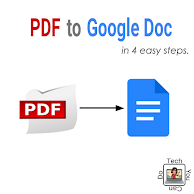
Let's turn more of our PDFs into tools that our students are already familiar with and can interact with and have the accessibility they need. Let's turn those PDFs into Google Docs (or Slides, if you prefer)!!! And, it's super easy! After 4 simple steps and a little bit of formatting clean up, you can take any PDF and turn it into an editable Google Doc that you can share and/or manipulate. To better demonstrate, here's a Slide deck you can reference and share out to others.
Check it out ... I promise it IS easy and you can do it! And I promise you WON'T regret it.
*UPDATE - Dec. 10* Here's a video of the process in action!
Questions? Need or want some help? Be sure to reach out on the socials - all my links are below my photo. I really do think you will find value in making this shift.
I am super pumped to share this today! I was crazy excited about a year ago when we could start inserting audio in Google Slides. I was pumped! I shared out "Insert Audio (... for kids!) You Can Do" a little more than one year ago. It's not super complicate, and it's definitely doable for both you and students, BUT ... today makes inserting audio CRAZY SIMPLE!
Today ... if you are sitting down ... get ready to jump for joy! I'm going to share something that I absolutely adore and it's many uses! Mote. This tool is my new favorite tool and I can't stop sharing it and finding new ways to use it.
I. Absolutely. Love. It!
Here's the general overview of Mote. It's an extension. Add it to your Chrome profile and it then shows up in your extensions bar, yes, AND inside Google Slides as well as in your comment box in Docs, Slides, Sheets, and Classroom. Now you can easily - and quickly - record your voice in all of these areas! And the voice notes all save to your Google Drive with the correct share settings so they are ready to be listened to! Voilá!
If you are interested ... Mote can do far more than record voice comments. You can also provide transcriptions (in over 20 languages) and edit the transcriptions. And you can record "Motes" to be shared in places outside of the Google Apps listed above. (That's a topic for another day - of go to their website https://www.justmote.me/ and learn about their other capabilities.)
Have I convinced you to give Mote a try? If so, I can offer you the chance to have a 60 day FREE trial of the Unlimited tier. Yep - that's right ... click on this link and you get 60 days FREE on the Unlimited tier. Woot!
I thought it would be best to demo each of the ways you can use Mote in the following short videos. While these are ALL awesome ways to use Mote to share audio feedback, I'll give you a tip - I saved the BEST for last ... promise!
Using Mote in Google Docs Comments
Using Mote in Google Sheets ... TWO different ways
Using Mote in Google Slides Comments
Using Mote ON Google Slides
Using Mote in Google Classroom Comments
Using Mote in Google Classroom's Comment Bank
If I've persuaded you, be sure to click on this link that will give you 60 days FREE on the Unlimited tier. And as always, if you have comment or question, be sure to leave it below ⤵.
Or connect & follow me on any of the socials - it's all linked under my photo above.
P.S. I have Wakelet collections full of tips, tricks, and other resources for many of the applications I shared in these videos.
*** Every Monday, I share a newsletter with a collection of Tech You Can Do resources. It is delivered right to your inbox. Interested? Sign up here! ***
I am on an epic learning adventure this summer! To make a long story short, I did a short appearance on the GEG Ohio meeting in April and now I've got quite a few virtual sessions lined up. I'm super excited! To check out what I will be presenting & the registration information, please check out the "My Presentations" page.
The first BIG learning adventure I am embarking on is what I want to share today. Together with my #NYC19 Google Innovator coach, Dr. Desiree Alexander, I will be doing an intro class for the Google Apps. Two have already happened, and if you weren't able to tune in, no worries! Desiree shares them on her YouTube Channel. I wanted to also share them here, too, along with the resources.
I do my best to make any presentation I do worthwhile, so I format it to make it a "play along". The first session was about Google Sheets and the second session was on Google Docs. Google Slides is coming up on Tuesday and Forms on Thursday.
There's still time to join in! Check out the registration doc here, Tech You Can Do: An Intro to Google Apps. And if you can't make the day/time, I highly recommend you register anyway ... Desiree will send the recording out afterwards.
Google Sheets You Can Do
Google Sheets can be intimidating, but they don't have to be. I even formatted my presentation IN a Google Sheet so you can see that it is far more than a spreadsheet. (It IS a pretty amazing spreadsheet, too.)
I have 2 versions of the resource:
1. This link is what it looked like prior to the recording. (If you want to "play along", make a copy of this one so you can do it authentically on your own.)
2. This link is the after version with all the changes made during the presentation. (Feel free to view/make a copy of what mine looked like afterwards.)
Here is the video:
Google Docs You Can Do
Google Docs is probably the first & easiest of the Google Apps to get going with. It is a word processor, but like ALL of the Google Apps, don't limit them to "only" being their basic format. Docs is much MORE than word processor, as we will see when we dig in.
Here is a link to Google Docs You Can Do. I shared two pretty powerful tools with Docs: one is voice typing. This is awesome for your students with specific learning needs, but ALSO for everyone - yourself included! Another powerful tools is "version history". PLEASE put this in your "teacher bag of tricks" and use it ... not just with your rascals, but also to help all when things gets deleted. It can be a huge help.
Here is the video:
I hope these two encourage you to look at Sheets & Docs in a different light. They are both incredible tools for you and your students. Do you need additional help? Do you have other questions? Feel free to reach out in the comments below ... or email me: sarah@techyoucando.com ... or reach out on Twitter - @kiefersj.
For the past 3 weeks, I've shared about doing better Google searches, results, and citations. During this time, my own 4th grade daughter brought home a research project ... to be done at home. (How ironic?!)
As I was writing "Citations You Can Do" last week, she began doing her own research ... and quickly became frustrated. Now, she knows how to do the basics: she created a Google Doc, opened a tab and began doing her research. But she became frustrated with HOW to go about collecting information. She had her rubric in front of her with her teachers' requirements, but from there she was lost. She hasn't done much research, nor has she been given much direct instruction on research. She started copying and pasting information from the Internet and told me she was done. When I questioned her on putting it in her own words, she got frustrated and walked away from the computer.
It dawned on me in that moment:
it's not that she didn't WANT to research (she was actually very excited!)
it's not that she COULDN'T research (she understood the process of looking up info), and
it definitely wasn't that she didn't have the TOOLS to research (we have a desktop & various devices along with her info from her teacher).
It was simply she didn't know HOW to take the requirements from her teacher and use it to guide her when she researched. Now let me give you a little background on her ... she asks questions all the time. She is happy to ask ANYONE questions ... me, her dad, sisters, teachers, principal, even Siri & Google. So why not this time? Why not now? I didn't realize it at first, but I realized she didn't see the requirements as questions to answer. They were statements. She read "climate" and researched "climate". She found a paragraph about the climate for her ecosystem and copied & pasted it. Done, right? Requirement fulfilled?
With this new realization, rather than argue with her, I tried a different tactic. While she was taking a break, I jumped onto her Google Doc and wrote the requirements as individual questions. One piece of information at a time. For each of the 3 required paragraphs. (I also included a direction at the end of each paragraph for pasting the URL of her sources.) When she came back over, she asked what I was doing. I asked her to try again, and this time, answer the questions. Just type out the info she finds. We didn't worry about complete sentences. She searched, she read, and she jotted down info in her own words because she was answering the questions. It worked! * On the left is the paper she brought home. The typed part on the right is what I did for her. *
Once she had the research part done, I took a deep breath and told her it was now time to write her information in paragraph form. I waited for a negative reaction. BUT ... she jumped in, restated the questions, and wrote her paragraphs (clearly, she's had practice doing that!). And since I had her copy and paste the URLs from her searches (for her citations at the end), if she had questions, she was able to open them up and confirm her own questions. She even took the time to include a few pictures of the plants and animals she included. (That's my girl!) And since she is confident enough in Docs, she tackled the spelling & grammar errors like a champ!
The realization that there is a difference between giving students a set of requirements to include in their research and the ability of them to DO the research smacked me in the face. How often have I assumed students know HOW to take my expectations and turn it into a report? How often has that word "assume" come back to smack me in the face? How many more times will it? So rather than sit back and hope this gets better, I created a template to share. There is no way I can anticipate every research project for every teacher, but hopefully, you can look at this and recognize ways you can make modifications to your rubric/guidelines/ expectations/etc so your students are able to better research.
To the left is a peek at the research template I created. (It is a Google Doc since most reports are seen as word processed documents, but I can easily see this done on Slides, too.) I broke it down into 4 parts. Feel free to use or adjust what works for you. At the top, there is space for students to write down the topic. This is very important, especially working with younger, or first time, researches, or if your students will be researching with the help of parents or another teacher. Part 1 is dedicated to the actual research. I suggest teachers write the requirements on the left in the form of questions. Students are asked to write their info on the right side of the chart. Part 2 asks students to write their paragraphs directly below the chart of info they gathered. This is helpful so they are working only with the information for that paragraph. I also hope it limits the fear of being overwhelmed. One paragraph at a time. Part 3 guides students in turning their sources into citations. I like using "Cite This For Me." However, if you are working with older students and have very specific guidelines, please feel free to substitute your instructions. Finally, Part 4 is all about cleaning it up. (I called it polishing up.) Since it's a Google Doc, the version history will always tell the full story. I included a couple of suggestions on how to polish it up. You'll have to decide what's the best for you and your students. Click here for the link for the "Research Template". If you like what you see, please click on "File" and then make yourself a copy. I cannot stress enough that you are welcome to use what works and adjust anything that doesn't. I've also added this template to my co-created website "Templates for Teachers". This site is devoted to sharing out items similar to this research template. My friend & colleague, Beth Kingsley, & I created this over a year ago and we have just about 70 templates for various activities. You are welcome to make your own copy and fit it to you and your students. And if you are looking for help on how to guide them to better research, please check out these previous blogs:
Research is something we all want our students to do and to do well. Please do not assume they know how to do it, or that they know how to do it well. Even if they are high school students, I'd love know how much they improve if we take a little bit of time and do some direct instruction on good research skills. Have a question or comment? Feel free to comment below, reach out to me on Twitter @kiefersj, or email me at sarah@techyoucando.com.
Do you voice type text messages or notes to yourself? Do you ask Alexa, Google Assistant, or Echo to perform commands? Chances are you have at one point or another.
Welcome to the world of voice controls!
Our voices are powerful. And with every passing day, they become even more so. Google Docs included the ability to voice type awhile back and I demonstrated this tool to a group of students this past year. It is super easy to learn.
To Voice Type:
Click on "Tools" in the toolbar
Click "Voice Typing"
The microphone will appear to the far left
Click on it to allow the microphone to listen
Start speaking
Click the microphone to turn it off
Demonstrate this tool to your students, AND encourage them to USE it! This tool was one of the most powerful tools I taught that group of students. They began using it on a daily basis. We noticed the microphone in the Google Search bar and the kids were excited to find out it works there, too! This helped their researching! AND we found we can voice type speaker notes in Slides and them copy and paste them into the Slide as a mini-workaround.
I know what some of you are thinking ...voice typing might "feel" like cheating. But it's NOT! This is where our thinking needs to shift. As a classroom teacher, I had many students who had great thoughts, ideas, and opinions but struggled when it came time to put the pencil to paper. When computers became the "norm" in my classroom, I believed this would help ... and it did ... for some. For others, typing is also a struggle.
Voice typing is not cheating because it requires knowledge of the all technical parts of writing. The punctuation commands you can give to Docs are
If I had to venture a guess, I'd say probably everyone's first experience with Google Apps is with Google Docs. It is Google's word processing tool. In it's infancy, Docs was pretty thin on tools and capabilities.
Not anymore!
Voice Typing
One of my favorite tools in Google Docs is voice typing. I realized this year how powerful this is for students. In my classroom, I always had students who could verbally tell me such wonderful information, but struggled to get it down. There were so many times that I wanted to hand them a tape recorder. Now it is in their hands! And if you give it a chance, you just might empower your students to finally have a way to share their "voice". (And I bet you'll find out what a sweet voice it is! 💖)