Showing posts with label Eric Curts. Show all posts

Sunday, February 10, 2019

Valentine's Activities You Can Do

My job has many different components - which I thoroughly enjoy - and the top two pieces to my job is when I get to work directly with teachers and when I get to work directly with students. I have been fortunate enough to be working with one group students regularly for 2 years now. 

Most of the time, I've got a targeted lesson to tie into something they are working on in class or something their teacher has asked we work on ... but I surprised them Friday with a Valentine's Day themed selection of activities.

These students know Google Slides. They have been working with Slides since 2nd grade, so that's nothing new. However, I published this slidedeck to the web, so they got to see it in a different light. (At first they didn't even recognize it as Slides.) I used the Jourdain presentation template from Slides Carnival and they "oohed & aahed" over it. Since it's "choice activities", I explained they had 6 different activities to choose from and they were free to switch at any time. Then I stepped back and let them explore.


http://bit.ly/valentinechoices

Non-bit.ly link for Valentine's Choice Activities

Looking for a link to make a copy of the choice board? Here you go: Valentine Choice Activities template

💖 Valentine's themed hangman game using Flippity.net's template

💖 Chrome Music Lab to create music

💖 Make your own Valentine's Magnetic poetry in Google Drawing (thanks, Eric Curts!)

💖 Valentine's Day Breakout using Flippity.net's template

💖 Valentine's word search - 2 levels - in Google Slides

💖 create your own Word Cloud with WordClouds.com

These kinds of activities are fun, holiday themed tech activities and I try to provide a variety of activities to allow students to explore things they may not otherwise get to see. To my surprise, this group focused on 2 activities - the Music Lab and the Breakout! There was some good music happening and a group of students worked together to "breakout". When the classroom teacher saw how many were drawn to the Music Lab, she went across the hall and grabbed the music teacher to join us for a few minutes and I learned who Kandinsky was!

Tuesday, July 10, 2018

Control Alt Achieve Math

Control Alt Achieve
Eric Curts

TWITTER: @ericcurts

If you know me at all, you know I hold Eric Curts in very high regard. I learned about him several years ago and I am blown away - on a regular basis - with his creativity and his ease at making learning accessible to all. I share his stuff all the time and I definitely want to highlight some of his amazing math resources. 

I only have so much space, so please do NOT limit yourself to these particular resources. Go to his website (linked above) and for math resources, scroll down on the right side and find his "math" label. You'll end up getting lost in all his resources!!!
  • 11 Ways to Teach Math with Google Drawings Google's Drawing app provides so many possibilities for the math classroom. Eric shares 11: lines of symmetry, pictographs, line plots, fractions, shapes, and so much more! [He also lists common core standards each activity can link to!]
  • Interactive Clock Face with Google Drawings Again, using Google's Drawing app a clock face become interactive. Learning time and how the hands move becomes a fun activity. I shared this with my daughter's 1st grade teacher two years ago and it quickly became a class favorite on the SMARTboard! The students were super excited to "tell" time on the giant clock! 
  • Pattern Block Templates and Activities with Google Drawings Can you tell Google Drawings is a must for the math classroom?? This activity provides limitless pattern blocks for hours of fun. No worries about losing the tiles, or not having enough sets for the number of students ... give each student their own copy of the Drawing and step back! Eric even includes the template AND directions easy enough for even the littlest learners.
  • Solving Story Problems with the Highlight Tool Add-on in Google Docs A big part of any math class is reading - we have to be mindful of that. How cool is the thought that Google Docs can enter the picture and using the highlighting tool add-on to assist with students visually seeing the various parts of the problem. (Or a lower-tech thought ... simply have the students use the traditional highlighter on digital word problems.)
I could go on and on ... Eric's resources are amazing and extremely helpful. And, as a bonus, he has FAR MORE than math resources! Bookmark his website for sure!!!


Friday, June 1, 2018

Summer 2018 Learning You Can Do

Contrary to what the non-educator community might think, summer is NOT a time where teachers turn their brains off. On the contrary, most educators I know spend a great deal of time planning, prepping, and learning for next year. They just don't have to do it within the contracted time or with 30 sets of eyeballs staring at them.

Time in the summer is more forgiving ... more flexible ... just more. Time can be 15 minutes here, an hour there, or nothing at all during a family vacation. The reverse can also be quite true - time can be hyper-focused for an entire day to complete a workshop.

If you are looking for ways to amp up your summer learning time, I've got a few suggestions. Chose one or two to try.


Google Certified Educator
If your school uses Google, this is a fantastic way to earn FREE professional learning credits. 

There are 2 Levels - Fundamentals and Advanced. Getting certified was a goal I accomplished 3 years ago and I'd recommend it to ANYone!

Website ↝ Training Center

If you need help, feel free to contact me!


Eric Curts Webinars
If you are interested in learning Google in small pieces, Eric has over 30 webinars "on demand". They are roughly an hour long and after watching them, you have the opportunity to take a quiz and receive a certificate worth 1 contact hour. 

Website ↝ ControlAltAchieve


Forward Edge Webinars 
Once a month, Forward Edge (a company focused on providing technology to schools) shares a live webinar on a tech focused idea. Afterwards, you can access on demand. They are roughly an hour in length.

Website ↝ EdTech Webinar Series


Saturday, March 10, 2018

#IMMOOC Week 2: Critical Conditions to Support Learning & Innovation

Empower (John Spencer & AJ Juliani) #EmpowerBook
Suggested Reading: Chapters 1-3

Oh where does the time go in a week! Gotta 💖 early Saturday morning with a quiet house, pup snuggled next to me on the couch, and reflecting on all things education. Deep breath ... here we go! (Gotta man a Girl Scout Cookie Booth in a bit!)
“Student choice is the heartbeat of ownership and empowerment.” Respond to that statement and describe how you are honoring that statement.

Now, more than even, we need to work with students on make choices. As with everything in education, we need to remember our "WHY" - it's the students! When I join a teacher in a lesson, I see students differently than the classroom teacher. I have that luxury. With that in mind, I see students struggling to actually MAKE choices. In the Week 1 podcast of the YouTube discussion, I was reminded that WE have conditioned the kids to rely on us to tell them what to do. WE need to help them learn how to make choices --- the only way to do that is to GIVE them choices. 

Probably the most powerful example I can offer is from working with 4th graders right before Christmas break. For fun, I showed them Eric Curts blog post 12 Days of TechmasI gave them the opportunity to pick any of the 6 Googley Winter Activities They literally sat there and stared at me. I prompted them, "Which one are you going to do?" One girl piped up & said, "The one you tell us to." I smiled and said, "No. YOU get to pick. Which one looks like fun? Scroll through ... read a little bit and decide on one you'd like to try. And guess what? If you don't like it, try a different one. There's NO right answer." 

Deep breath. Jump in. And once they realized I was being serious, they jumped in. And had fun! And can I tell you ... I worked with a small group of these same kids just this week (more than 2 months later) and one student showed me how he was STILL loving the Pixel Art Ornament activity so much that he was continuing to create new drawings. The teacher of another class I had shown these activities to asked me to help her created a Google Sheet so her students could create a book cover in this fashion. So I created "Pixelated Book Covers" for her. [See my blog post about it ... HERE

Now, let's be honest. These kinds of activities may not appear to be super "academic", but think about it for a minute. They were:

Tuesday, March 6, 2018

Pixelated Book Covers You Can Do

*Updated 12/3/2022*

Inspiration
Back at Christmas, Eric Curts shared his "12 Days of Techmas". One of the activities from Day 6 - "8 Googley Winter Activities" - was Pixel Art Ornaments. I shared these activities with several classes and they 💖'd it! (I still see students creating drawings with it!) If you've not checked these out, I highly suggest you do! They aren't just winter time activities ... they are use-any-time-you-want activities. Promise!

Description 
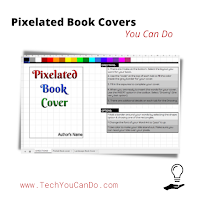
image for Pixelated Books Covers You Can Do
Recently one of the 3rd grade teachers I work with, Laura Counts (@mrskidscounts) asked for my help with a project.  She said her students loved the pixel activity so much, she wanted them to create book covers ... in pixel form! How cool!!! I set to work creating a template for her. 


Google Sheets is   P E R F E C T   for this! The first tab contains directions, the second tab contains a portrait style layout, and the third tab contains a landscape layout. Conditional formatting is used to create the "colored pixels". I turned off the gridlines for the entire sheet so that it looks blank. Then I added a black border around the outer edge of the "book cover" and light gray lines on the interior cells to show the cells. This gives the illusion of "pixels". 

Once the student is satisfied with their pixelated book cover, the final step is a little "app smashing".  Inserting a Google Drawing ON TOP of their pixels allows them to include the title & author of the book. Students can "jazz up" the text to their liking. If necessary, more than one Google Drawing can be inserted to create the "perfect" cover 😉.

Interested in trying this with your students? PLEASE DO! Here's a TEMPLATE. You are welcome to click on "Use Template" and 🌩BOOM🌩! You have your own copy! I'd love to see what your students create ... please share on Twitter and tag us @SarahJKiefer & @mrskidscounts

Here are a few examples from her students ... do you recognize the books?


Content / Age Appropriateness

Using a Google Sheet for creating pixelated book covers (or pixelated drawings/images) is a great activity for event the "littlest" students! All it takes is a Sheet formatted to change when a letter is typed in.

For this activity, I worked with 3rd graders in connection with the books students were reading. Pushing this out (or any other Doc, Sheet, etc) via Google Classroom is an awesome way to quickly get students right where they need to be. This gives the teacher quick access as well. 

Ideas for Going Beyond / Other Uses
  • Don't limit yourself (or your students!) to book covers! Use this to allow students to be creative.
  • Math, anyone? ... Eric Curts added in a fraction sidebar where students need to figure out what fraction each of the different colors were. (This probably works best with a much smaller working area ... think more like a 12x12 group of cells ... otherwise fractions become HUGE)

  • Science - use this to "draw" the water cycle.

  • Social Studies - use this to allow students to recreate an event in history.

Credits

I have to give credit to Eric Curts - he is a wonderful resource - and truly was the foundation for the inspiration for this project.


And Laura Counts - you provided the "need"! And I am SO glad! I had such a great time.

Tuesday, January 16, 2018

Tech Your Little Ones Can Do

Sometimes, the littlest learners don't reap the rewards of devices in the classroom. And to be honest, creating realistic activities for the littlest ones to really be able to do ... just sounds exhausting! 


Be rejuvenated! There are plenty of things out there for them (& you!). Don't be afraid to incorporate bite-sized tech into the class for them.  Several educators already have tackled this and are sharing their ideas, tips, and tricks. Here are a few of the ones I regularly see sharing ... add them to your PLN. 


Eric Curts is one of my absolute FAVORITE techies.  He's a fellow Ohioan who I've had the privilege of sitting in several of his OETC sessions as well as watching numerous of his FREE on-line webinars. He is a former classroom teacher who regularly shares ideas, tips, and templates. His blog - ControlAltAchieve - is an amazing website FULL of useful activities.  Follow Eric on Twitter @ericcurts.  Some of my favorites from Eric's vault:
  • 💖 6 Googley Wintertime Activities ðŸ’– [LINK] - Six Seriously Stupendous activities for students of all ages ... it'd be tough to pick a fav, but for the littlest ones I'd recommend #1 Build a Snowman (Google Slides) OR #4 Pixel Art Ornaments (Google Sheets).
  • Pattern Block Templates and Activities with Google Drawings [LINK] - no need to purchase sets of pattern blocks or worry about losing them when clean up time is cut short.  This template supports learning about symmetry, fractions, tessellations, angles, and more ... all while also reinforcing tech skills of dragging and manipulating objects - can we say fine-motor?
  • The Future of the Google Drive Template Gallery [LINK] - the Template Gallery may not be the first thing to come to mind when thinking about how to better use Google in the classroom, but Eric does a great job in sharing how this gallery can really support the younger students (& yourself!) by providing a basic template. Students can focus on the information rather than the basic format of the document.

Monday, December 4, 2017

5 Google Slides Activities You Can Do

The other day, I wrote a post about change and how it can be amazing.  Here are 5 activities you can use in your class.  Take your pick and do one ... or do them all!


Google Slides Scavenger Hunt (Catlin Tucker @Catlin_Tucker) -- an amazing activity you can use to help your students become more proficient with Slides. And it's FUN! and YES! You can make your own copy of it and share with your students.  It's beautiful - go ahead ... share with your students, tomorrow.


Build Your Own Snowman (Eric Curts @ericcurts) -- this amazing activity allows your students to be creative without the hassle of needing to find the "accessories" to build their own snowman.  Eric reinforces writing skills by giving space to write a story about the snowman they create.  Eric includes a template you can copy and share, AND he also provides a short tutorial in case you need it!


If-Then Adventure Stories (Google's Applied Digital Skills Curriculum) -- this take on "Choose Your Own Adventure Stories" many, including myself, enjoyed as a child, is set up to walk your students through the process from start to finish.  


**Note - it says it is geared for middle/high school students, so if you want to use with younger students, you may need to provide additional support.  (I used it with 4th graders and they 💛'd it!)