Showing posts with label Wakelet. Show all posts

Sunday, February 27, 2022

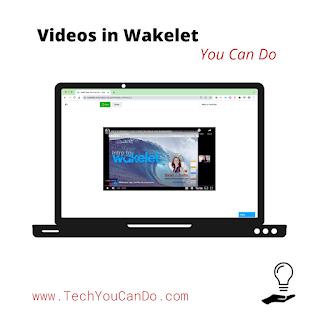
Videos in Wakelet You Can Do

Have you wished you could watch a YouTube video without all of the "extras" on the page? What if I told you that you CAN ... and it's SUPER easy? In fact, it's probably one of the easiest tips I'm passing along lately.


I was reminded of this recently when one of the elementary music teachers I work emailed me hoping to do just that. He did NOT want all of the ads, the comments, and the suggested videos to show when he showed a video in class.

You will need 2 things: the video(s) you want to show & a Wakelet account. [Wakelet is "a digital curation platform that lets teachers and students organize a mix of content for easy access" and is FREE to use. I have hundreds of collections. I've talked about Wakelet numerous times and love sharing how great it is to use.]

Here's what I showed the music teacher:

  1. Create a collection - the view status (public, private, unlisted) depends on how/who you want to share it with.
  2. Copy & paste the video link into the collection.
  3. View the video IN Wakelet.
Done. It's as simple as that. Would you like to see it in action? I made a quick video to share this & see the final product. 

p.s. The music teacher can use this single collection over and over to curate any/all videos he might want to use during the year OR he can share this collection directly with his students in Google Classroom (or any LMS you use) so they can view it on their own. WOW!


Quick suggestion - why not create an entire "playlist" in the Wakelet collection? Share the collection with your students and viola! You have a playlist without all the "extras", too! And don't stop there ... if you are looking for a way to share videos with parents, you can use Wakelet for the same purpose! (Thanks Jake Miller for the idea!)

Are you looking for other ways you can use Wakelet? I've got another blog post to help you out! Check out "Wakelet You Can Do". 

Was this helpful? Did you try it out? I'd love to hear from you! Comment below or tag me on the "socials" - all links are to the right.


Sunday, July 12, 2020

Wakelet You Can Do

I write today to share today a tool that has helped me out ... a LOT! Our lives are all busy for many reasons - personal life, work life, extracurriculars, and more ... I have spent countless hours trying to figure out a system of curation that makes me happy, and one that works across platforms because I don't always have my computer with me. About a year I wrote about curation in "Digital Curation Tools You Can Do", and I mentioned I wasn't super "taken" with Wakelet. One year later, after becoming frustrated with everything else I was trying, I tried Wakelet again, rode the "Wakelet wave" and fell in love! 

Wakelet is an app, an extension, and a website - I use all 3! It is super visual, easy to use & modify, and you can curate more than digital links. In fact, you can add 10 different "things".


I highly suggest you check out Wakelet ... the ability to quickly add links, videos, PDFs, etc to ONE spot and come back over and over has been incredibly helpful. I have begun using Wakelet in some non-traditional ways, too, that I've found crazy helpful.

For example: 

Webinars & Resources
I have tuned into countless webinars these past several months & am constantly opening tabs to see the resources shared, taking screenshots of important things, along with jotting notes down on paper. Now, how do I keep ALL of that together - for myself to reflect on or to potential share with others? A Wakelet collection! That's right -- I create a collection (& most of the time an image I've taken works as a great cover). The title starts with "Professional Learning: "Title" ... and the description gives some kind of description of the topic. After that, it becomes a quick process of opening a new tab (I allow Wakelet to "control" my new tab), and drag & drop the sites I opened; upload the images I took; and finally, take photos of my notes & upload, too. 

ALL. IN. ONE. SPOT. 

I can even add text to include a reflection or additional notes I want to highlight. If possible, I'll include a link to the recording so it truly means EVERYTHING is in ONE spot! As a bonus - I have the ability to share this collection with others! [Note: I don't typically make these public as I don't want to upset any of the presenters by sharing without their permission.]

Here is an example - be sure to click on the < > to scroll through!


Topic Specific
This is probably the easiest and basic way to use Wakelet. Create a collection & start popping in items that relate. Refer to it, share it, add collaborators - enjoy! I have so many of these! One for each Google app, one for each content area, one for areas of high interest to myself! (I have 91 collections right now!)

The collection below is one where I collect digital activities in one spot. I can come back and look for something specific, or if someone asks about activities I know of, it's a quick share of this collection and they have 80+ ones to scroll through. Don't you LOVE the visual appeal!?!? Major bonus points for me!

Don't forget - click on the < > to scroll through!


Collections of Collections
This one is newer for me but packs an AMAZING punch! Wouldn't it be awesome if you could gather up multiple topics into one BIG one, but still keep them "separate"? Well, you CAN and this is perfect!

I updated my "Professional Learning" tab yesterday this way ... I had been using Pearltrees, but hadn't been updating them, or frankly, even looking at them. I'd already duplicated most of them in a Wakelet, but based on the views of this page, others ARE looking at this specific page, so I didn't want to get rid of it. Sooooooo, I created a "Professional Learning" Wakelet collection & embedded it! No preview below ... just head on over to my "Professional Learning" page to check it out. I even embedded the Pearltrees of the peeps I follow on Twitter (b/c I actually like how it looks better!).


Collaborative Professional Collections
This idea came about during our closure and as a result of a discussion with my Tech Director. We needed to pivot on a project of sharing resource guides with our staff and he suggested Wakelet and as soon as he said it, YES!!!!!!! 

These are meant specifically for our staff, so I kept them "unlisted" so only our people can see them. I shared them with the other tech staff so they can also contribute to them and each building has a collection of documents specific to them. I then took each buildings' collection and made a district collection & this is what was shared. Voilá!

Sorry for no preview ... but that's another benefit of Wakelet's ... you don't HAVE to share with everyone 😃.


Bottom line ....
If you've not given Wakelet a try, I highly suggest you do! It's worth your time! Also ... did I mention you can follow people on Wakelet? Yep! You can follow me & receive notifications of when I create new collections. 

You can check out my profile on the social links to the right under my picture.

And on a final note ... you can share collections with students!!!! Yep! Check out more info at Wakelet for Students.


Have questions? Want to contact me? Connect via the "socials" ... all links are to the right. 

Do you have a comment? Comment below ⤵️


Sunday, August 18, 2019

Guardian Emails You Can Do

With the beginning of the year, a topic that is super close to my heart is communication. I can't stress to teachers enough how important it is to have clear and consistent communication. I adopted this philosophy early in my career and it definitely paid off. And being a mom to three girls in school, this is also an important topic on the home front as a parent. I love my girls, but let's be honest, they don't always come home and detail out their day like I would like. Anyway I can gain more insight to their day is very welcome!


Are you a Google Classroom user?

Perfect! You have to try out the Guardian email feature. Beyond the initial setup, there is nothing for teachers to do. And the guardians will receive an email daily or weekly, based on their preferences.

Done.

Yes, it's that easy.

Looking for a little more help? Looking to convince others to try it out? I've got you.


I've also started collecting Google Classroom ideas/tips/tricks in a Wakelet collection. I've included a link to the official Classroom help site about Guardian summaries in it, too. 
You can check it out here ↬


Have a question or comment? Feel free to comment below, reach out to me on Twitter @kiefersjor email me at sarah@techyoucando.com .


Monday, August 5, 2019

Google Drive Organization You Can Do

Last week I shared a Slide deck focused on the icons and pieces of Google Drive. I promised to be back this week with a Slide deck focused on organization. I hope I don't disappoint!

When I work with teachers, the moment we need to open their Drive, I'm met with guilty looks and the admission of "My Drive isn't very organized! I keep meaning to get to it, but ..." I do not sit in the judgment seat. As teachers, I believe we do our best and often, we are pressed for time. When I converted to using Drive as my "digital filing cabinet", I, too, struggled. I also have tried enough strategies to know that there is no one perfect method. What I've compiled below are some very simple and basic, no-frills steps to having a better organized Drive.

The top question I get when working with teachers, is "Sarah, how do you organize your Drive? I'll just do mine like yours." WRONG!!!!! My brain works differently than yours. I house different topics than you do. I do what I do, because it works for me. You have to do what works for you. Please know, what I'm sharing today works you through a process rather than give you a formula. You will need to dig a little deep, put some thought into it, but I promise ... it pays off over and over! 

It will be investment of time in the beginning, but once you hone what works for you, you will see it will save you quite a bit of time in the long run. You'll know where the files are you are looking for, you'll spend less time re-creating what you've already created, and you will feel more confident in sharing with others. 

Don't get me wrong, I'm still not 100% perfect, so don't stress. Searching your Drive is incredibly powerful and helpful, even for the most organized. Do I hear a topic for next week? Nah ... I've got you covered already! I shared "Better Searching in Google Drive" on my companion blog "TYCD: Resources". On this blog, I try to share out a resource or tip each Tuesday with a brief overview. I'd love it if you checked it out!

And because I am not the only one sharing about Google Drive, I've created a Wakelet collection for tips/tricks/resources I come across. You can check it out:

Here you go! This week, my Slide deck is here to help you organize your Google Drive better. Feel free to use it for yourself, peers, and most definitely with students. I've based it off what I do with teachers on a regular basis. Some of this is definitely geared to ANY audience, but some is specific to teachers.  If you want to use it with students, great! You might want to make your own copy & take out what doesn't work for your students (or your specific teachers). Enjoy!

Here is a LINK if you want to make a copy & modify it for you. ***


Have a question or comment? Feel free to comment below, reach out to me on Twitter @kiefersjor email me at sarah@techyoucando.com .


Sunday, June 16, 2019

Digital Curation Tools You Can Do

Do you ever feel like you have information overload? 

I do. A lot. I see so much I want to read or try or create or soak in or share out. I feel like I am constantly reading and looking. My husband often asks, "How do you have so much going on in your brain?" 😊 But I don't feel like this is a bad thing ... not at all.

What I struggle with is keeping all the good things I see organized in a way that will make sense to me now AND later. Call me crazy, but I've not found "the perfect" system. I hear people swear by this tool or that tool, and I feel a little jealous! I wish I had "the perfect" system. I've tried out others' systems, but it doesn't work for me - not in the "perfect" sense. I like a lot of things about a lot of tools, so until I find "IT", I will continue to use a variety of tools to curate what I come across & want to keep.

Why curate? I couldn't possibly do everything right now ... I need to prioritize, and I support a variety of teachers with a variety of needs. I curate a wide variety of tools, activities, people, books, blogs, resources, conferences, and more. I do this all year long and summer is a great time to take a good look at what you've got and sift through. In fact, it's on my to do list ... to better organize - for both personal and professional items. 

If you are interested in digital curation tools, I've got a few to share, but there are dozens out there. These are ones I've spent some time working with and feel like I can comment on.

Pinterest
Pinterest ↭ hands down, my oldest curation tool. I got hooked on Pinterest when I was pregnant with my middle daughter. I could sit and snuggle her and scroll through Pinterest in small chunks or long periods when I could just rock with her. I love being able to create boards for groups of ideas. And the secret boards are perfect for projects you don't want everyone else to know about! Many dinner recipes were found this way. I don't use it a great deal anymore - I'm not a fan of the many links where you are linked out to a place you also have to have an account or you have to pay to use. I do curate my blog posts there under a board I call "Tech You Can Do" (LINK HERE). Pinterest has both an app for mobile devices as well as a Chrome extension that I use.


Pearltrees
Pearltrees  another social bookmarking tool. While I've used it some, I've not dug in deep. I love the visual aspect of Pearltrees. I love that I can add more than websites to it. I've used Pearltrees only for a year or so and I think it provides a nice view of curated "things". Right now, I have 3 groups of "pearls" where I've curated Twitters I follow, various learning opportunities I want to share out, and professional learning with podcasts and people that I admire. I have embedded them on my website and from the stats, this page gets a fair amount of views. (LINK HERE) Pearltrees has a Chrome extension that I'd highly recommend if want to use it. It also has a mobile app that is easy to use.


Wakelet
Wakelet  is similar to both Pinterest and Pearltrees. It is also a digital bookmarking tool. This is a newer tool with a familiar feel. I have tried to get into using it, but being honest, I've not. I do know several people who really like Wakelet, and it's a top tool in the edtech world. You can make collections and these collections can be shared. Wakelet is intended for those 13 years and older. But collections can be shared with younger students.

If you are interested in learning more, check these links out:

Authors - Sean, Karly, Dr. Randall Sampson, Jen Saarinen, Scott Titmas, Claudio Zavala Jr., Paul West, John Bimmerle
*** UPDATE!!! *** Thanks to Andy, my Tech Director, for sharing this tip ... teachers can share Wakelet collections with students in their Google Classrooms. How awesome!!! Kim Mattina shared this "how to" VIDEO. (Thanks, Kim!)


email
Email ↭ I know this is probably on everyone's "Do Not Do" list, but I've found it to be a great tool for curation. I often email myself a link with a short note attached so I know who I was wanting to share with or a note to remind myself later what I was thinking. If it's school related, I email it to my school account; if it's for me personally, I will email it to my personal email account. This has worked REALLY well! Part of the reason it works, is the little badge reminds me I have something waiting for me. And I check my email several times a day. It is definitely going to be a tool I continue to use. (Hey, sometimes you just have to be a rebel, right?)


This is a very small collection, so if I don't list one here & you have an awesome one, please reach out! Maybe you will have the one I've been searching for.  Next week, I'll be back with a different take on curating and curation tools.


Have a question or comment? Feel free to comment below, reach out to me on Twitter @kiefersj, or email me at sarah@techyoucando.com.