I've recently encountered a few fellow "tab-aholics" who apologized for the number of tabs they had open. I always smile and laugh when I find another member of the the club I fondly refer to as "tab-aholics" ... aka, the people who have what seems to be a ridiculous amount of tabs open. I assure them they aren't alone and that I, too, am part of this club. I take it one step further and usually have several windows open with multiple tabs. And then, even one more step, I have all of my Google accounts set to "Continue where I left off" so when an update needs to push through, or I close Chrome, or my computer restarts unexpectedly, all of my much loved tabs pop right back open for me.
These new tab-aholic club members apologized because they were struggling to find the right tab and I showed them this quick tip. They found it super helpful, I wanted to be sure to put it out there for you, too.
Did you know you have the quick ability to search and locate a desired tab with 2 simple and easy methods?
Method #1: Hover
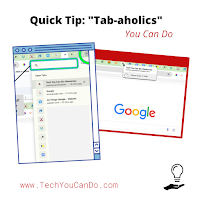
You can just hover over any tab with your cursor and it will tell you the name of what is open on that tab. It's as simple as that. Just move down the line - or hover of the icon you recognize for the application. Voilà! This is my top choice for finding the tab.
Method #2: Use the "Search tabs" tool
In the upper right corner, you'll find a down facing carrot. Click on it and you'll see a vertical list of your tabs open in this window. Super convenient! Even better, if you're list is longer than the screen, you can start typing next to the magnifying glass and type in a word or so. Boom!
I use both methods frequently. I know quite a few people who like the ability to group tabs, but I am not one of them ... yet. I might check into that, but if you are interested, here is a great shared write up from Sethi de Clercq, Boosting Productivity with Chrome’s Save Tab Group Feature.
Enjoy a more efficient way to find your tabs!
*** Every Monday, I share a newsletter with a collection of Tech You Can Do resources. It is delivered right to your inbox. Interested? Sign up here! ***
I hope that breaking down the end of year like this will allow you to move into summer with a cleaned up digital life and be ready to start next year on better footing. (I also hope it will help you develop good habits moving forward so the clean up at the end of each year gets easier!)
Tip #5 is to go through your digital bookmarks.
Let's do one of 3 things:
delete ➔
these are ones you don't even know why you have them OR
they were a one-time bookmark & no longer need them
organize ➔
put in an order for easy location OR
create/add to bookmark folders for groups of bookmarks
leave alone ➔
these bookmarks are perfect right where they are
You might be wondering why I suggest cleaning up your bookmarks ... I frequently see teachers struggling to find the sites they have bookmarked. We don't have a lot of "time", so bookmarks can be deceiving if you don't have them organized. They can easily become like your junk drawer. Lots of things go in there - good things, important things - but you can never find anything.
Take the time once a year to clean them up and you'll start next year off a little more organized ... and maybe even with the plan to keep it that way. My ultimate goal is that I don't have any bookmarks trailing off my bookmarks bar. (I DO have some folders, but they are necessary to keep groups of bookmarks together.)
Don't spend a ton of time on this. Set a timer for 15 minutes. If you are still working through your bookmarks, take a break and come back.
*** Every Monday, I share a newsletter with a collection of Tech You Can Do resources. It is delivered right to your inbox. Interested? Sign up here! ***
I'm going to wrap up the year with an easy Tech You Can Do share. Keyboard shortcuts are a favorite of mine and super helpful! I can remember when I first learned about them ... I wrote "Cmd + C = copy" & "Cmd + V = paste" on a post it note and put it on the lower part of my monitor. The sticky has long worn off and I've committed those two to memory, along with many others.
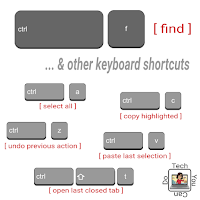
Today, I want to show how valuable the "Ctrl + F" keyboard shortcut is. [Remember if you are on a Mac, substitute "command" for "ctrl".] You can use this shortcut in several different places ... websites, Google Docs, Sheets, Drive, and even on most PDFs!
If you find this shortcut helpful, add it to your repertoire & tell a friend or two! And if you are looking for more useful shortcuts, be sure to check out my Wakelet collection all about Keyboard Shortcuts! So many good ones tucked in there!
Do you have a shortcut I can add to the collection? Just give me a shout on the socials or in the comments below ... I'd love to add on.
I make it no secret that working with teachers and students is my dream job. When I shared Freedom from Your Desk You Can Do two weeks ago, I wasn't sure where it would go. After all, it's an extension that has been around for awhile - but I had not used it until recently. After setting it up with one teacher, I also shared it out to all of the teachers in my district. Thanks to them, I am following up to share what they discovered and shared back to me! I think it makes this extension "that" much better.
I knew this extension would be helpful to a lot of teachers but what I didn't expect was that after I shared it, that I would continue to learn more. And these are super helpful things to know about what this extension can do!
Here's what I've learned about this extension:
Jessica shared how she was able to print items from her desktop ... while she was in the copier room! That's right! Being able to trigger a print job from items on her desktop via her chromebook - wow!
Guess who'll never "lose" another print job ... or have to make several trips back and forth to the copy room?
Leah shared how she uses the non-mirroring ability on her desktop (so her projector acts as a second screen) and with this extension she can see BOTH "screens" on her desktop.
It's kind of small, but possible.
Think how many screens she has now? Unlimited on her chromebook and unlimited on her dual screens on her desktop!
Amy shared how she was able to control her desktop from off campus!
She said she even printed remotely.
At home sick? Want to set your desktop up for your sub? Just needs to be powered on, right?
Anyone else's mind blown right now? No one goes into teaching thinking they know everything ... but this unexpected learning is always so fun!
If you want additional freedom from your desktop, I highly recommend the Chrome Remote Desktop extension. What will YOU discover? Please be sure to share back so we can all learn.
And with all of the shortages, is there anything YOU can share? It doesn't have to be a full lesson. It's doesn't have to be a big package or tool. Do you have tips or tricks or ways of doing things that make your teaching life easier? Can you share something ... even if you think it's silly or too small ... it might be "the thing" that helps one other teacher.
Wow. What I had thought would be a week off from writing ended up being a little more than two months! I know I don't owe you an explanation, but here it is ... life got busy. And this year is tough. Tougher than last year. Something had to give. But I'm back today with a good one!
A few weeks ago, a teacher asked me about using an app on her phone to control her desktop. What she had wanted to try didn't work, BUT I had just had a conversation with fellow Shake Up Learning Trainer, Susan Vincentz. She had just trained her teachers on an extension that allowed them to remotely control their desktops. A quick message to Susan gave me the name of the extension and today, I'm sharing it with you. I've helped several more teachers set this up and it seems to me a huge improvement for teachers!
The set up isn't difficult, but it has several steps on two computers. In my district, each teacher has an iMac as their desktop and a chromebook as their portable device. Doing this it isn't difficult, but it takes a minute to wrap your head around it. They do not want to be tied down to their desktop as they present, but in order to control the tabs, slides, volume, and more, they'd have to be right there. With this extension - you can be FREE!
It's all about a single extension you add to your Chrome account that allows you to control your ENTIRE desktop via a second device. It really is mind-blowing the first several times you think about it. It's a 2 part process, so to help with this, I made 2 videos to share. Really, it's more about being confident in "following the clicks" as you install the extension. And be sure to write down your PIN! That is key in making this process work!
Part 1: Installing on your desktop (or your main computer)
Part 2: Installing on your second device
Congratulations! You've done it! I'm excited to share this with more people - if you use this, please let me know - I'd love to hear about it! If you have questions or comments, please reach out, too! All my contact info is near the top of this page.
Time seems to pass differently in the summer for me. It's still 24 hours in one day and 7 days in one week, but summer feels like an endless stretch of time, yet I know it's not. I don't spend nearly the amount on time on professional work during the summer - but I have things I really want to get done. This series of tips is meant to capture small chunks of time and use them productively.
Summer Sunday Tip #1 was all about "To Do" lists. I use to do lists to help organize myself daily and for long projects. One thing on my to do list is to take some time and organize my Chrome accounts. I try to be good during the school year, but if I take about 15-20 minutes at the beginning of the summer, I can get through my Chrome accounts and do some clean up work. School is fresh "enough", yet not breathing down my neck, so I'm sure to keep only what I really need.
Step 1: Separate Chrome Accounts
This is a huge problem for a lot of people - they don't 100% understand the difference between logging into their Chrome account vs their Google account. If you've ever not been able to find something in your account and you are shocked to find it in a different account, this is probably your cause. There might be a bit of work here ... but the bottom line is this - it's EASY to keep your Chrome accounts separate, yet easily accessible. You just have to know how.
Once you have your profiles separated, you can work to see if you have files that need to be moved to the correct account.
Believe me ... it is well-worth the time to do this! You will thank yourself later.
Step 2: Bookmarks - use the favicon!
I have a deep love of bookmarks. I will never forget my student, Juliana, who showed me how to use ONLY the favicon for bookmarks that I am super familiar with. (The favicon is the small image that is associated with the website ... the colorful triangle for Drive ... the colorful M for GMail ... etc). It saves SO much space & allows me to use the rest of my bookmark bar for additional websites.
Check out the video I made showing how to make this happen.
Step 3: Bookmarks - use folders!
Another way I save space & keep my Chrome organized is to create folders on my bookmarks bar. Another super simple tip and goes a LONG way in helping keep my organized. As a classroom teacher, I had a folder for each unit and each chapter, saving me a ton of time year after year when I wanted to find the same great resources. I use folders as categories to group like bookmarks together.
Check out the video I made showing how to make this happen.
Step 4: Bookmarks - delete!
Something a lot of people might not think about when organizing their Chrome is to actually go ahead and delete the unwanted - or unused - bookmarks. When I sit down with teachers to do some organization in Chrome, many are often surprised the sheer number of bookmarks they have. "Wow!" or "I don't remember bookmarking that!" are common comments. It doesn't matter when, or why, you did, if you aren't using it, delete it. You might be surprised how much cleaner and easier it is for you when you are looking for the bookmarks you really do use. Another super simple way you can organize your Chrome account.
Check out the video I made showing how to make this happen.
Step 5: Customize your theme & profile for each account.
The final suggestion I have for you when organizing your Chrome accounts is to change the theme and your profile image. I have several Google accounts (a personal one, a school one, a Google Trainer one, and a couple of others). If they all had the same profile image and looked the same, I would struggle in knowing which is which. I have strategically used a different profile image for each and used the available Chrome themes to help me more easily see which account I am using. This is a MUST if you have multiple accounts.
Check out the video I made showing how to make this happen.
I promise, after doing these 5 steps, your Chrome accounts will feel organized. Each step should be fairly simple and easy to do.
Come back next week - Tip #3 will focus on doing the things we put off during the school year.
Questions? Comment ⤵ or connect with me on any of the socials - my links are above on the right.
Psssssst! Have you heard? I've got some upcoming presentations YOU can join me! Here's a quick peek, but for a list of all of my upcoming and an up-to-date list, head over to "My Presentations" page. (I just added a couple more of August, too!)
Tuesday, June 22 @ 1 pm EST - Level Up with Google Docs
Tuesday, June 29 @ 1 pm EST - Level Up with Google Sheets
Thursday, July 1 @ 1 pm EST - Level Up with Google Slides
Friday, July 9 @ 1 pm EST - Level Up with Google Forms
Monday, July 12 @ 1 pm EST - Level Up with Google Drawings and Jamboard
Tuesday, July 13 @ 1 pm EST - Level Up with Google Sites
Google is good at many things ... one being change. One change you may or may not have even noticed is dealing with extensions on your Chrome account. I know I noticed it for awhile, but didn't pay much attention to it. [Could that be because of the pandemic, one might ask???]
Now that I've explored it, I've found it to be an excellent addition to the extensions area. I went from an extension tool bar that looked like this:
To an extension tool bar that now looks like this:
So much better! I choose to "unpin" extensions I do not frequently use. I didn't delete them, I just don't have to see them all the time. Yes! To better explain and demonstrate this, here's a video:
Take 5 minutes and clean up your extension toolbar. It's 5 minutes you won't regret! And if you are looking for additional ideas on extensions or Chrome tips, check out the two Wakelet collections below.
The last two weeks, I've shared how to help students do better searching and then choose better results. The final piece to this series focuses on helping your students do better citations. This piece is easy to forget or let fall by the wayside. But it is in incredibly important for us to teach.
Students will not understand - unless we teach them - how important it is to give credit to the places where they are gathering their information (or using their photos) from. Our students are not being malicious when doing their research. They are simply answering the questions that often, WE are asking them to answer. We cannot let citations be skipped. We need to teach our students how important it is to give others credit. AND ... we are lucky to have tools that make citations incredibly easy.
Here is a quick Google Slidedeck that shows how citations can be super easy. Tonight, I showed my own 4th grade daughter use it in her latest project. She used it for both her information and her images. After doing it with her twice, she was able to cite all of her sources independently.
Feel free to use it in your class "as is" OR make your own copy of it.
And finally, I have a confession to make. There will be one more post in this series. It came as quite a surprise to me. As is true of many of my blogs, one of my daughters plays a starring role . . . she brought home a research project and asked for my help. Next week, I'll be back with the whole story and the addition to this research series. It really changed my thought process about research with students.
Last week I shared "Better Google Searching You Can Do". I focused on the conversation I had with a teacher about using a kid-safe browser vs teaching better search skills. I recommend we teach better search skills since I firmly believe they will serve our students long after they leave our classrooms.
This week, I'm back with a follow up. Let's say your students use the tips I shared and do a better Google Search. Now what? Using better search terms will help get better initial results. Can we help our students at this point go through the results and narrow down to find the better results? Of course!
These tips will definitely take practice, but once you & your students get into a routine of using them, you will hopefully find they pay off in the quality of your results. Post this in your Google Classroom (or other LMS or website) so your students can refer to them anytime they do a search. I choose to focus on "tropical rainforest animals" - feel free to use this as the example and have your students do a search on their own topics.
A big part of my job is having conversations with teachers about ideas they have for their classrooms. I recently had a conversation with a teacher who wanted to know what would be a safe search engine for her students. This teacher was asking with the best of intentions - wanting to do what she can to protect her students. I completely understand her thinking, but I challenged her idea of using a "kid safe engine". Instead, I proposed this ... we spend the same time teaching her students how to perform "better" searches on the search engine we all know they will use tomorrow and for years in the future. She agreed, and I agreed to join this conversation with her students.
Research is an important skill that is taught in some way at each grade level. At younger grades, it could be using books and other print material to find information about Presidents or animals. At older grades it could involve researching hybrid cars or causes of the Civil War. I've seen my 7th/8th grade students only doing basic searches. I've seen my own daughters coming home with projects and would have very little direct instruction on how to research.
Teaching students how to do better internet searches can be a very valuable lesson ... and one well worth the time. Imagine if we can teach our students how to limit the millions of results? Imagine if we can teach them how to filter out some of the 'noise'? Imagine if we can teach them how to use the built in tools to narrow their results even further? Imagine if we teach our students how to search so that it doesn't matter if they are researching an animal or historical person or event or even a disease?
How about we take 30 minutes and give students - of all ages - some direct instruction and practice? Practicing good searching skills can pay off just like practicing math facts or collaboration or reading. And if we, the teachers, provide time to learn some solid search strategies, it tells our students we value good search skills and we want our students to find better information.
There are 6 basic search tips, along with 4 advanced tips.
Feel free to use it in your class "as is" OR make your own copy of it.
Next time, I'll be back with how to filter out even more once you've done your search. This is the next step in researching online. Your search terms are important, but once you've done this, we'll look at how to find better results from this point. And rounding it out, the 3rd part will focus on helping students to cite their work once they've found the sources they are wanting to use.
Happy Spring! I'm on Spring Break so I wanted to take a little time each day to share a Chrome extension that I absolutely adore and find useful on my TYCD: Resources blog. Each extension is directly linked below ... the TYCD: Resources blog is linked above.
7 Extensions You Can Do: (click on the name of the extension to read more)
Last week, I covered 5 reasons why you should use Chrome. This week, I want to dive further into the settings you can customize in your Chrome profile. This will further enhance your Chrome experience. I hope you'll come to love using Chrome just like I did.
Opening Your Settings
Your settings are the key to all things custom for your Chrome account. It is super easy to find. Check out my 1st #EduGIF ! (Thanks, Jake Miller!) Your settings will open in a new tab and it provides a search bar at the top. Let's go over some simple ways that will make your Chrome account feel like YOU. It's also a great opportunity to make your school Chrome account different from your personal Chrome account. Before you do anything ... make sure you are in your account. Once you are on the settings page, you should see your account listed. If not, use the sign in option. Another note ↬ if you are in a G Suite account for school, your admin does have the ability to restrict or limit several of these options. If you can't adjust in your school account, pop into your personal account and do it. Have fun!
Chrome "Theme"
The first thing you can do to personalize your Chrome account is to add/adjust your "Theme". This is the very first item under "Appearance".
Mine is currently set to "Beach Board". The little square with the arrow pointing out will allow you to navigate to the Chrome Web Store and change your theme. Look around, check them out ... you can always come back and change it later. As you scroll through them, look closely. Some will only change the image when you open a new tab. Others will even change the look of your tabs! There's no right or wrong ... only personal preference. Try one and see what you think. You can always change it again!
Chrome "Home Button"
The easiest one-click bookmark you can do is to set your "home button" to the location you visit the most often. This option is located just under the Theme option.
Take a few minutes and really give it some thought. First of all, you do not even have to use it, but I find it to be very beneficial. I jump into my Drive all the time. So I've set my home page to my Drive. It's as simple as copy a URL & paste it in. Done. The home button is located just to the left of your URL/omnibox. One click and you are home.
A lot of my time is spent on the computer. Learning, creating, troubleshooting, corresponding, etc. With the rare exception, I use Chrome. I use my Chrome account (aka Google) to allow for max productivity since I work in a GSuite school district and have carried that over into my personal life.
Let's start with answering the question, "What is Chrome?" Chrome is a web browser. Its use will provide many benefits. Today, let's look at 5 of them.
1. Chrome is NOT device specific.
By this I mean it will work on ALL devices! It will work on desktops, tablets, chromebooks, laptops, phones, iPods, etc. Chances are, if you can access the internet, you can download Chrome to your device. This will provide benefits to your sanity that I will explain below.
2. Chrome is NOT platform specific.
This means you can use Chrome whether you are a "Mac person" or a "PC person" or if you are a student who has been given a Chromebook. And with very few exceptions, you'll see it works similarly if you move between these platforms.
3. Chrome contains ALL of your Google account.
What do you use in Google? Drive? Docs, Sheets, Forms, Drawings, Calendars? Classroom? Google Sites? Blogger? Google Keep? More? All of the above? Great! They are all in Chrome!



.png)