Sunday, February 27, 2022

Videos in Wakelet You Can Do

Have you wished you could watch a YouTube video without all of the "extras" on the page? What if I told you that you CAN ... and it's SUPER easy? In fact, it's probably one of the easiest tips I'm passing along lately.


I was reminded of this recently when one of the elementary music teachers I work emailed me hoping to do just that. He did NOT want all of the ads, the comments, and the suggested videos to show when he showed a video in class.

You will need 2 things: the video(s) you want to show & a Wakelet account. [Wakelet is "a digital curation platform that lets teachers and students organize a mix of content for easy access" and is FREE to use. I have hundreds of collections. I've talked about Wakelet numerous times and love sharing how great it is to use.]

Here's what I showed the music teacher:

  1. Create a collection - the view status (public, private, unlisted) depends on how/who you want to share it with.
  2. Copy & paste the video link into the collection.
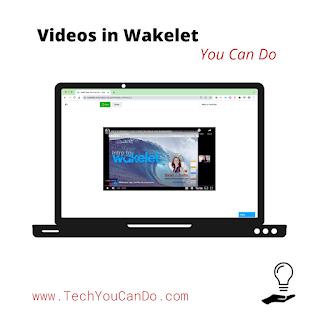
  3. View the video IN Wakelet.
Done. It's as simple as that. Would you like to see it in action? I made a quick video to share this & see the final product. 

p.s. The music teacher can use this single collection over and over to curate any/all videos he might want to use during the year OR he can share this collection directly with his students in Google Classroom (or any LMS you use) so they can view it on their own. WOW!


Quick suggestion - why not create an entire "playlist" in the Wakelet collection? Share the collection with your students and viola! You have a playlist without all the "extras", too! And don't stop there ... if you are looking for a way to share videos with parents, you can use Wakelet for the same purpose! (Thanks Jake Miller for the idea!)

Are you looking for other ways you can use Wakelet? I've got another blog post to help you out! Check out "Wakelet You Can Do". 

Was this helpful? Did you try it out? I'd love to hear from you! Comment below or tag me on the "socials" - all links are to the right.


Sunday, February 20, 2022

Click here to sign up for my newsletter.

Subscribe to our list

Monday, February 14, 2022

Learning Communities You Can Do

Do you have a good support circle? I'm not talking about social friends - yes, they are important - I'm asking about your "professional learning network", or your PLN. People you can reach out to when you need help with your job. Maybe to bounce ideas around with, help you solve a problem, share resources with, remind you to give yourself grace, and more.

If you don't have a PLN, and I'm referring to the bigger world - DO IT. Create a professional account on a platform of your choice. (I like Twitter and Facebook.) Keep it professional. Find others that are like you - your grade level, your content, your teaching style, etc. Follow them. Join some groups. Don't feel required to interact until you are ready. Use these groups and people to do what we always tell our students ... ASK FOR HELP. 

Why am I focusing on this right now? I am lucky to be part of several great learning communities and I want to encourage you to join them. Here's a great example of the power of my PLN ...

The story:
A teacher texts me and asks about an extension to "shade" part of her computer screen. Yep, I know there was one. I couldn't remember the name, so I did some looking. Couldn't find it. Looked in the Chrome Web Store. Nothing. Searched on Google. Nothing. Looked in a book that I thought had it. Nope. I was striking out - I the teacher know I couldn't think of it.

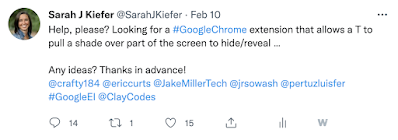
Then, just before I put my phone down for the night, I threw it out on Twitter. I tagged a couple of people in my PLN and sent it out. I had confidence at least one of them would chime in with help. And that they did. I've linked the Tweet thread on the screenshot below. Just my simple question.


I received responses from more that the people I tagged. 11 suggestions were made. And I think several of them will work ... and I didn't know about them before I asked. See what happened was, people were not only answering my question, they were broadening my questions reach by tagging others - people and companies in a couple of instances - they thought might be helpful. I am SUPER excited!

Here are the top three four I'm going look into:
  • using the "Stickies" tool on Macs (it's built in, nothing to download or install, I can re-size as much as necessary, even change color & type on them)
  • the extension Annotate.net (which is packed with a TON more features than a screen shade)
  • the extension Helperbird (which has 38 other features - the company chimed in on this)
  • just before I published, I looked back at the Tweet and found Texthelp chimed in, too, so this is definitely on the list!
Here's something to note about these ideas - I don't know the people who suggested them. I am super grateful they chose to respond. When you use a platform like Twitter, not only can you reach out to your PLN, you can reach out to the wider world.

Can you add to this? That would be awesome! See, it's not going to just help me ... anyone who reads the Tweet will learn everything I just did. How cool is that? 

Have you used any of these? Do you have a preference? Let me know in the comments or on the socials. 


Saturday, February 5, 2022

2033 Time Capsule You Can Do

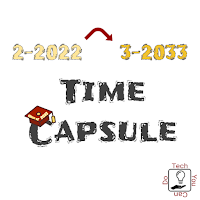
We are in a very unique month ... February 2022 ... or 2-2022. And if you look at specific dates, you'll see two more more unique dates: 2-2-2022 and 2-22-2022. Have seen the posts on social media suggesting  students to create time capsules like I have? What makes 2/2022 even more unique is the current first graders will be in their SENIOR YEAR in 2033! Layer on specific dates and these 1st graders will experience March 3, 2033 ... or 3-3-2033 ... in their senior year.

How cool are these dates?

I shared this idea of time capsules with the 1st grade teachers in my district and they all loved it as much as I did. I'm excited to see what becomes of this activity! Today, I am sharing the digital activity I created to go in the time capsules.

This activity is loosely based on the idea of capturing "now" in a way that can easily be compared to future dates. I bought something like this for my own daughters capturing their birth year information. You are welcome to use it "as is" or it can be completely customized to better fit you and your students. I created one slide to fit current 1st graders and one slide that will work for students of all ages.

Interested? Click the image below to make a copy for you & your students. What else will you include in YOUR time capsules?


Sunday, January 16, 2022

Storage, Clean Up & Recommendations You Can Do

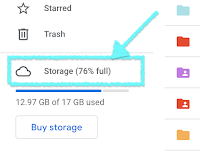
This year I am going to have to make some big changes to my Google Drive. I am nearing the max storage for my personal account and I am going to HAVE to take care of it. I have stumbled on a super easy way to see where my storage is being used and it comes with some suggestions on what I can get rid of.

Now, I AM talking about my personal account, but if I'm smart, I'll also pay attention to my school account because education domains will soon have limited storage as well. (For more information on the differences in storage and all features, please refer to Compare Editions.) And while I am not super worried right now, I DO know that if I'm going to share easy tips, I'm going to also go ahead and take advantage of them in my school account, too!

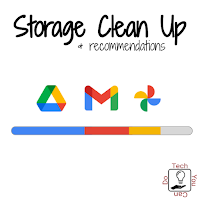
I have a LOT in my Google account. The line showing my storage is colored yellow ... I'm at 83% full. HOW? It's not that I am unorganized it's that I've been using Google for a long time and I've been loving how it saves to the cloud and I can access it anywhere. So I've been using it. 

I found a link to see how my storage was being used at the very bottom of my Gmail awhile back and now I also see it in Drive. But I ALSO heard on John Sowash's podcast, The Chromebook Classroom, the episode called "10 Links you should click (Jan 2022)" about Google One website. It's brilliantly helpful!

Interested in what you can see and tips on cleaning up your Google account? Check out this video:


After I recorded, I emptied the trash in my Drive and saved myself 10% of my storage! Easy peasy! (And most of them were videos I had deleted.)  WOW! I even noticed that clicking on the storage cloud in Drive will take you to a list of the largest files in your Drive. Easy way to delete your larger files that you no longer need, right? 


Don't put this off ... paying for storage is not a bad idea, but don't paying for storage when you don't really have to.

I didn't mention working on organization, but if you are interested in working on that, I've got a few resources for you: