Sunday, April 30, 2023

End of Year Tech You Can Do: Tip #4 Plan Your Summer Activities

I love lists.
I love being able to check things off said lists.
I love how organized I feel.
I love seeing what I've accomplished.
I love having a plan in place.

This week, I suggest you carve out a little time and create yourself a summer to do list. 

It doesn't need to be fancy ... but you can make it fancy. It doesn't need to any length ... you can always add to it or subtract from it. There is NO requirement. It's summer. I like to get a lot of home projects done during the summer. 

I started to create mine this weekend. I used the page in my notebook where I am planning each month's big picture to do's. It's the page right between June & July. So far, I've only added a few things - family pictures, family vacation, my oldest daughters - gasp! - senior pictures, and a couple of professional activities that are already scheduled. 

This week, I am going to add three categories that I know will have things I want to complete: home DIY projects, professional learning, and items to get done for school. My list will not be complete until summer is over; I'll add and subtract from it.

My goal is to check everything off, but plans change and somethings things aren't meant to get done. Ultimately, I do the things I CHOOSE to do - summer is my time. I WANT to do the things I put on my list. And believe me ... I get in plenty of rest and relaxation and sunshine, too!

For my summer professional learning, I'm planning to do a variety of activities: 
  • A couple of books I want to read
  • A certification or two I want to work towards
  • Podcasts to catch up on
  • Templates and activities to create and share on my blogs
If you are interested in starting to plan your list, be sure to check out the Professional Learning page here on my blog. I have been collecting free & low-cost ways for teachers to continue learning for quite some time. Many are in the "on-demand" style so you pick and choose and do them in your own time. I've begun adding some books that I have found valuable as an educator - these can be found by choosing "Book" in the secondary focus filter on the table. I plan to add podcasts, too.

What's on your agenda? Have you started thinking about it? I'd love to know what you are planning - whether it's school related or not.


*** Every Monday, I share a newsletter with a collection of Tech You Can Do resources. It is delivered right to your inbox. Interested? 
Sign up here!  ***

Sunday, April 23, 2023

End of Year Tech You Can Do: Tip #5 Clean Up Your Bookmarks

I hope that breaking down the end of year like this will allow you to move into summer with a cleaned up digital life and be ready to start next year on better footing. (I also hope it will help you develop good habits moving forward so the clean up at the end of each year gets easier!)

Tip #5 is to go through your digital bookmarks. 
Let's do one of 3 things:
  • delete ➔ 
    • these are ones you don't even know why you have them OR
    • they were a one-time bookmark & no longer need them

  • organize ➔
    • put in an order for easy location OR
    • create/add to bookmark folders for groups of bookmarks

  • leave alone ➔
    • these bookmarks are perfect right where they are
You might be wondering why I suggest cleaning up your bookmarks ... I frequently see teachers struggling to find the sites they have bookmarked. We don't have a lot of "time", so bookmarks can be deceiving if you don't have them organized. They can easily become like your junk drawer. Lots of things go in there - good things, important things - but you can never find anything. 

If you want a more detailed explanation of how to make folders and other bookmark tips, check out this blog, Organize Chrome (in 5 Steps) You Can Do.

Take the time once a year to clean them up and you'll start next year off a little more organized ... and maybe even with the plan to keep it that way. My ultimate goal is that I don't have any bookmarks trailing off my bookmarks bar. (I DO have some folders, but they are necessary to keep groups of bookmarks together.)

Don't spend a ton of time on this. Set a timer for 15 minutes. If you are still working through your bookmarks, take a break and come back. 


*** Every Monday, I share a newsletter with a collection of Tech You Can Do resources. It is delivered right to your inbox. Interested? 
Sign up here!  ***

Saturday, February 25, 2023

Docs Scavenger Hunt You Can Do

I have been spending some time in 3rd grade classes lately and recently, I had the pleasure of showing them a little more about Google Docs. Docs is where most adults start when using Google tools, but it's the 2nd tool that students use (behind Google Slides). And at 3rd grade, our students already have a bit of background, so I used a "scavenger hunt" rather than a blank Google Doc.

The couple of weeks leading up to this tech lesson, we had dug into Google Slides, so I started this lesson off with "hands off" and just looking at your screen, compare Slides to Docs. [I HIGHLY recommend doing a visual comparison before jumping in ... you can quickly gauge how much each group knows/doesn't know so you can more easily pace your activities.] It's always amazing to me what stands out and what doesn't stand out. Some students notice very small things (one commented on not having the paint bucket in Docs) and others find much bigger things (the color of the "Share" button).

Moving into the actual scavenger hunt, I let the students know that I did not originally create it, but I DID modify it to better fit them. [Thank you, Catlin Tucker!] I've used this before with students and it works really well! This year, I broke up the questions a bit more to fit the amount of time I get to spend with them - my goal is one page per visit. 

I'm going to share the link to "Google Docs Scavenger Hunt for 3rd grade" here, but the link is going to take you to my co-written blog, Templates for Teachers. Keeping all of the student activities together makes a lot of sense. Now, I call it "for 3rd grade" because that is the group of students I use it with, but you are more than welcome to change it or take it off completely. Please also feel free to modify to add/subtract the "hunt". 


*** Every Monday, I share a newsletter with a collection of Tech You Can Do resources. It is delivered right to your inbox. Interested? Sign up here!  ***

Sunday, January 15, 2023

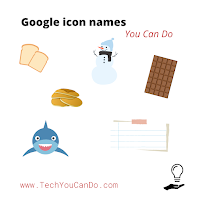
Google icon names You Can Do

How many times have you heard someone stress the importance of your words? I think about this often whether I am working with a group of students, teachers, or with individuals. 

I think about this when I refer to tools or files or actions and most definitely icons. Working with our youngest learners often forces me to describe icons or logos or "things" in order to get students to the correct spot. (And teachers find such humor in the names!) If you spend any time in a classroom - of any age - you quickly find you simply HAVE to be able to direct students to where you want them with your words.

After one of my recent classroom visits, I really thought about how I use words to describe. Probably the best way I can share this is with a video. I use these references with adults and kindergarteners ... and I honestly couldn't tell you who I get more giggles from, the adults or the students!

Additionally, I do my best to NOT be the "driver" in the lesson. For example, if a teacher asks for help cleaning up their drive, or how to clear their cache & cookies, I will walk them through it - but I do NOT touch their device. When I'm in classrooms working with students, I do my absolute BEST to NOT touch any of their devices ... I want THEM to do the clicking and moving. I often catch students (& teachers!) "helping" others by doing it FOR them. When that happens, I remind them to "Cheer them on! Point to the screen ... use your words."


After all, the person/people doing the "driving" is the person doing the learning. 

Now, go find those shark tooth's and pancakes and snowmen ... and listen for the giggles!


*** Every Monday, I share a newsletter with a collection of Tech You Can Do resources. It is delivered right to your inbox. Interested? 
Sign up here!  ***

Sunday, December 18, 2022

Google Groups You Can Do

The end of November/beginning of December was rough for me. I thought I had a migraine I couldn't get rid of and ended up spending 3 days in the hospital, undergoing a bunch of tests (all came back normal), ultimately to be diagnosed with shingles. I was stopped in my tracks. It was beyond awful. The pain was horrendous & nothing helped. It appeared on my face. And in my right eye.

With shingles, I had reduced vision for a week or so, so my inboxes were a giant mess when I was able to finally take a look. Ugh. I was also under strict orders to TAKE IT EASY. REST. DO NOT WORK. [I have never been a believer in "zero inbox". Mostly because I just didn't think I could achieve it. So I honestly didn't try hard.]

BUT ... I used this time as an opportunity to take the time and DO something about it. All it took was adjusting the settings in the several Google Groups I belong to. I love the learning and sharing that happens in these groups and I don't want to "miss out" ... but I also can't read/respond to everything. 

I did a little reading on what the settings actually meant and voilá! I am a changed person! (well ... when it comes to email, anyway)

I put together a quick overview of what it looks like - and below, I will link to some Google Groups resources, if you want to dive in a little deeper like I did.

Google Groups Help page "Create a group & choose group settings".


P.S. I'm not missing out! If anything, I am smarter about the ones I actually read, and feel good about the learning I do. And I know I managing my time better. Rather than 20 or so emails, I get a max of ONE per group. WOW!!!

P.P.S. I also decided to turn off the text message notifications on my watch. That has also made a difference! It's little things like this that are going to help me move into 2023 with a better balance and helping me focus on the "now". 

My challenge to you ... what is one little change can you make? Here are a few I'm contemplating trying next ... thoughts?

  • Turn off notifications for social media? 
  • Turn off the little red circle badge letting you know the number of notifications?
  • Only checking emails at designated times of the day?
I hope 2022 ends on a positive and healthy note for you and 2023 starts out the same.

*** Every Monday, I share a newsletter with a collection of Tech You Can Do resources. It is delivered right to your inbox. Interested? Sign up here!  ***